Delving into How to Use Cricut for Scrapbooking Layouts reveals a world where creativity meets technology, allowing scrapbook enthusiasts to elevate their craft to new heights. With a variety of Cricut machines at one’s disposal, the possibilities for designing personalized layouts are virtually limitless, making it essential for crafters to understand their tools and how to best utilize them.
This guide will navigate you through the intricacies of setting up your Cricut, mastering design software, exploring cutting techniques, and ultimately creating stunning scrapbook layouts that reflect your unique style. Whether you are a novice or an experienced scrapbooker, the insights provided will enhance your scrapbooking experience.
Understanding Cricut Machines
Cricut machines have revolutionized the world of scrapbooking, offering users the ability to create intricate designs and layouts with ease. These electronic cutting machines vary in capabilities and features, making it crucial to understand the different types available to choose the right one for your scrapbooking needs.Cricut offers several models, each designed to cater to different levels of crafting expertise and project requirements.
Below is a comparison of the primary Cricut machines that are popular among scrapbookers.
Cricut Machine Models
The main models of Cricut machines include the Cricut Explore Air 2, Cricut Maker, and Cricut Joy. Each machine has distinct features and capabilities suited for various scrapbooking projects.
| Model | Cutting Capability | Materials Supported | Special Features |
|---|---|---|---|
| Cricut Explore Air 2 | Up to 12 inches wide | Paper, vinyl, iron-on, cardstock | Fast mode, Bluetooth connectivity |
| Cricut Maker | Up to 12 inches wide | Wood, fabric, leather, paper, vinyl | Adaptive Tool System, rotary blade for fabric, scoring wheel |
| Cricut Joy | Up to 5.5 inches wide | Smart materials, paper, vinyl | Compact size, Smart Cut technology |
Each model serves a different purpose, with the Explore Air 2 being a versatile option for general crafting, the Maker being ideal for more complex projects involving various materials, and the Joy being a portable choice for quick, smaller tasks.
Essential Tools and Accessories for Cricut Scrapbooking
To maximize the potential of your Cricut machine for scrapbooking, certain tools and accessories are essential. These tools enhance functionality and allow for more creative freedom while working on your projects.The following items are considered crucial for effective Cricut scrapbooking:
- Cutting Mats: These mats come in various grip strengths suitable for different materials, ensuring that your paper or other materials stay in place while cutting.
- Blades: Different blades, such as the fine point blade and deep point blade, cater to various materials and thicknesses, allowing for precise cuts.
- Weeding Tools: These tools assist in removing excess material from intricate designs, crucial for achieving clean and professional-looking projects.
- Transfer Tape: This is essential for transferring your cut designs onto the scrapbook page without damaging them.
- Scoring Tools: Scoring wheels or styluses help create clean folds, ideal for cards or multi-layered scrapbook pages.
Utilizing the right tools and accessories not only streamlines the scrapbooking process but also enhances the creativity and quality of the finished product. Each accessory plays a specific role in ensuring that every project turns out just as envisioned, showcasing the full capabilities of the Cricut machine.
Setting Up Your Cricut for Scrapbooking
Setting up your Cricut machine for scrapbooking is an essential step that can significantly enhance the creative process. The proper configuration ensures that you can seamlessly transition from design to execution, allowing for a more enjoyable experience.The setup process involves several steps, from unboxing the machine to connecting it with your devices. It is crucial to ensure that your workspace is organized efficiently to maximize productivity.
Below are the steps to set up your Cricut machine and tips on optimizing your workspace.
Step-by-Step Setup of the Cricut Machine
To ensure that your Cricut machine is ready for scrapbooking, follow these essential steps:
1. Unbox the Cricut Machine
Carefully remove the machine from its packaging, ensuring that you have all components including the power adapter, cutting mat, and any included tools.
2. Power On the Machine
Plug the power adapter into the machine and then into an electrical outlet. Press the power button to turn it on.
3. Install the Software
Download the Cricut Design Space application on your computer or mobile device. This software is integral for creating and customizing your scrapbook layouts.
4. Create an Account
Open the Design Space application and create a Cricut account if you do not have one. This account allows you to save your projects and access a vast library of designs.
5. Connect the Machine
Follow the prompts in the software to connect your Cricut machine. You can connect via USB or Bluetooth, depending on the model of your Cricut.
6. Calibrate the Machine
Ensure that the machine is calibrated for precise cutting. This can typically be done through the settings menu within the Design Space.
Connecting Cricut to a Computer or Mobile Device
Establishing a connection between your Cricut machine and your devices is critical for smooth operation. Here are some tips to help you with this process:
Using USB Connection
If you prefer a wired connection, simply plug the USB cable into your Cricut and the other end into your computer. The Design Space should automatically recognize the machine.
Using Bluetooth
For Bluetooth-enabled machines, ensure that Bluetooth is turned on in your device’s settings. Open Design Space, select your machine from the available devices, and establish the pairing.
Ensure Proper Connectivity
If you experience connectivity issues, restarting both your Cricut machine and your device can often resolve these problems. Additionally, ensure that you have the latest version of the Design Space application installed.
Organizing Your Workspace for Scrapbooking Efficiency
An organized workspace is crucial for efficient scrapbooking. Here are some strategies to consider:
Designate a Workspace
Choose a specific area in your home dedicated to scrapbooking. This space should have enough room for your Cricut machine, tools, and materials.
Use Storage Solutions
Implement storage solutions such as bins, racks, or carts to keep your materials organized. Labeling these storage options can help you quickly locate items.
Create a Comfortable Setup
Ensure that your workspace is ergonomically designed. Use a comfortable chair and adjust the height of your table so that you can work without strain.
Keep Essential Tools Handy
Store frequently used tools, such as scissors, adhesive, and cutting mats, within easy reach. Consider using a caddy or a small rolling cart for easy access.
Minimize Clutter
Regularly tidy up your workspace to eliminate distractions and enhance focus. Organizing materials as you complete projects will help keep your area orderly.By following these steps and tips, you will set up your Cricut machine and workspace effectively, allowing for a smooth scrapbooking experience that unleashes your creativity.
Design Software and Cricut Design Space
Cricut Design Space is an essential tool for scrapbookers looking to enhance their creativity and streamline their design process. This user-friendly software provides a platform for creating custom layouts, utilizing various features that enable the integration of personal images and unique designs into scrapbook projects. Understanding how to navigate this software effectively is crucial for maximizing its potential.Cricut Design Space is designed with an intuitive interface that simplifies the design process.
To navigate it effectively, users can follow these steps:
Navigation of Cricut Design Space
Familiarizing oneself with the layout of Cricut Design Space is vital for efficient usage. Here are key areas to focus on:
- Main Canvas Area: The central workspace where users can visually arrange and manipulate their designs. It is essential to understand how to zoom in and out for detailed work.
- Toolbar: Includes tools for text addition, shape creation, and editing features such as undo, redo, and grouping elements. Mastering these tools can significantly enhance the design experience.
- Layers Panel: Displays all elements of the design, allowing users to manage layers effectively. Understanding how to lock, hide, or rearrange layers is key to maintaining an organized workspace.
- Templates and Projects Library: A vast selection of pre-designed templates offers inspiration and a starting point for new scrapbook layouts. Users should explore this library regularly for fresh ideas.
Using the above features allows for a smoother design process and enhances creativity.
Creating Custom Scrapbook Layouts
Creating custom scrapbook layouts in Cricut Design Space involves several straightforward steps. Here’s a structured approach to developing unique designs:Start by selecting a blank canvas or a template from the library that resonates with your theme. Following this, adjust the dimensions to match your scrapbook page size.
- Adding Text and Images: Utilize the text tool to add personalized messages. Choose fonts that align with your theme. Incorporate images either from the design library or uploaded personal images.
- Design Elements: Add shapes, borders, or decorative elements using the available shapes tool. Adjust colors and sizes to fit your layout.
- Layering Techniques: Employ layering to add depth. Use the layers panel to manage visibility and arrangement of different elements, ensuring an appealing layout.
- Finalizing the Design: Once all elements are in place, preview the design to ensure everything aligns correctly. Make necessary adjustments before preparing for cutting.
This methodical approach enhances the overall quality of your scrapbook layouts, making them visually appealing and personalized.
Uploading Personal Images in Design Space
Incorporating personal images into Cricut Design Space expands creative possibilities. Users can upload their photos or designs by following a simple process:Begin by clicking the “Upload” button within the software. The system will guide you through selecting an image file from your device.
- Image Format: Acceptable formats include PNG, JPG, GIF, and SVG. Ensure your images are of high quality for the best results.
- Image Trace Tool: Utilize the Image Trace feature to convert standard images into cuttable designs. This tool enables users to select areas for cutting or printing.
- Saving Uploaded Images: Once traced, save the image as a cut image or print then cut, depending on your project’s needs. Organizing uploaded images in a designated folder within the library can ease future access.
By following these steps, scrapbookers can effectively integrate personal images into their projects, enhancing the uniqueness of their layouts.
Cutting Techniques for Scrapbook Layouts
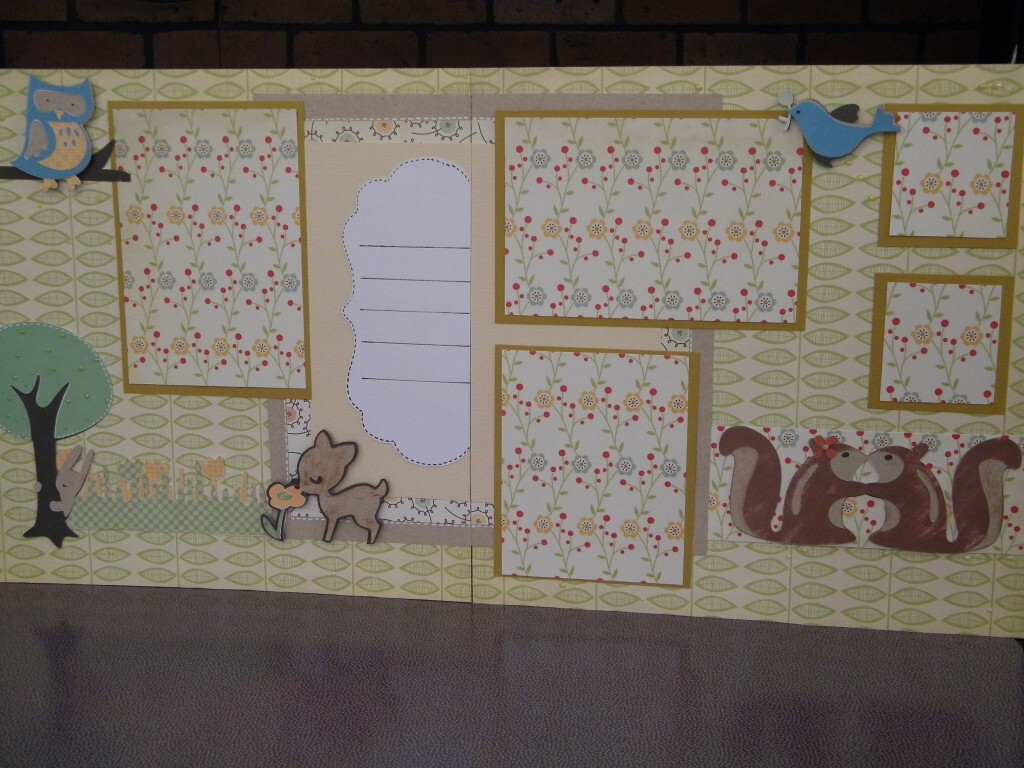
In the realm of scrapbooking, the intricate cutting capabilities of the Cricut machine can elevate your projects to new heights. Understanding the various cutting techniques not only enhances the aesthetic appeal of your layouts but also allows you to use diverse materials effectively. This section delves into the methodologies for cutting different materials, achieving detailed designs, and adjusting machine settings for optimal results.
Cutting Techniques for Various Materials
Different materials require specific cutting techniques to achieve the best results. Familiarizing yourself with these techniques ensures that each element of your scrapbook layout is precisely crafted.
- Cardstock: This is a staple for scrapbooking. For standard cardstock, setting your Cricut to a medium pressure and using the fine point blade will yield smooth cuts. Ensure your blade is sharp for the best results.
- Vinyl: When cutting adhesive vinyl, use the ‘Vinyl’ setting on your Cricut. A lighter pressure can help preserve the integrity of the design, especially for intricate cuts.
- Paper Types: For specialty papers like glitter or foil, it is essential to adjust the pressure settings. A lighter touch will prevent tearing and provide cleaner edges.
- Fabric: For fabric applications, use a rotary blade and the fabric setting on your Cricut. This method allows for clean cuts while maintaining the fabric’s texture and durability.
Achieving Intricate Designs and Shapes
To create intricate designs and shapes, the Cricut offers specific techniques that can help you achieve stunning results. Utilizing the right settings and tools is critical in this process.
- Use of the Fine Point Blade: For detailed designs, the fine point blade is ideal. It allows for precision cutting of fine lines and intricate details.
- Adjusting Cut Pressure: Higher pressure settings can be used for thicker materials, while lower pressure settings should be employed for delicate cuts to avoid ripping.
- Design Layers: Layering designs can enhance the intricacy of your layouts. Use different materials for each layer to create depth and texture in your scrapbook pages.
- Utilizing Design Space Features: Cricut Design Space allows you to manipulate designs. Utilize the ‘Weld’ and ‘Slice’ features to create unique shapes and intricate patterns that will stand out in your layouts.
Adjusting Settings for Different Paper Types and Thicknesses
Understanding how to adjust settings based on the paper types and thicknesses you are working with is vital for achieving professional results.
- Thickness Adjustment: Always refer to the material settings in the Cricut Design Space. Thicker materials like heavy cardstock may require a deeper cut setting, while thinner papers can often be cut with a lighter touch.
- Blade Type Selection: Opt for the rotary blade for fabric or the deep point blade for tougher materials. Each blade type serves a specific purpose that enhances cutting efficiency.
- Test Cuts: Performing a test cut on a scrap piece of your material can save time and resources. This ensures that the settings you have chosen provide the desired results before committing to the final design.
- Material Compatibility: While most papers are compatible with the Cricut, specific materials, such as specialty or textured papers, may require additional settings adjustments. Always consult the material guide provided by Cricut for best practices.
Creating Custom Scrapbook Layouts
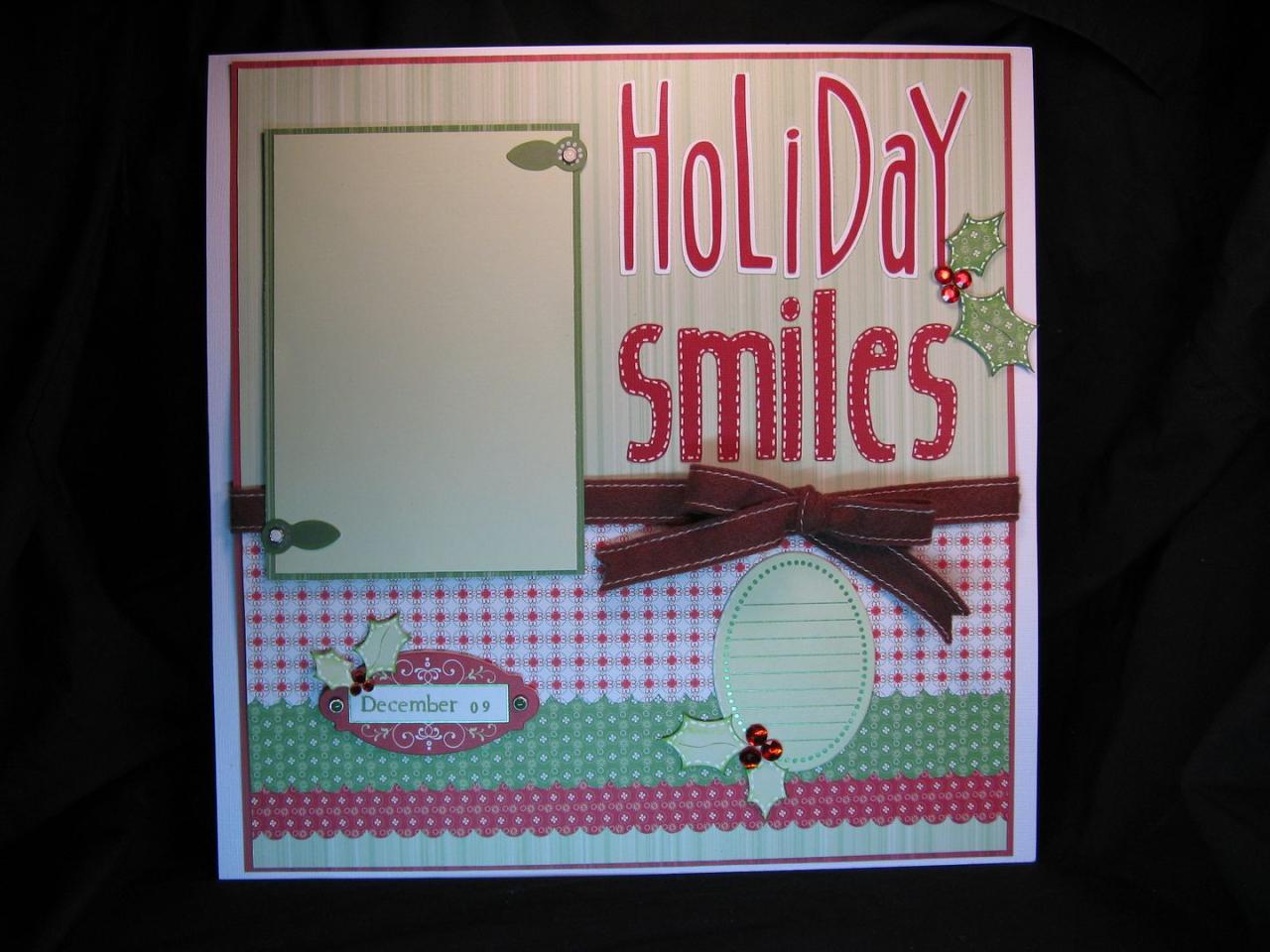
Creating custom scrapbook layouts with your Cricut machine allows for a unique expression of creativity, enabling scrapbookers to personalize their projects to reflect individual stories and memories. By incorporating various design techniques and themes, one can enhance the visual appeal of their scrapbooks and make them truly one-of-a-kind.Planning and designing a scrapbook layout involves several steps that ensure a cohesive and aesthetically pleasing final product.
Start by selecting a theme that resonates with the memories you wish to preserve. This could be seasonal, event-based, or even focused on a particular color scheme. Once the theme is established, gather necessary materials such as cardstock, patterned paper, and embellishments. Utilizing Cricut Design Space, you can create or customize specific elements like titles, shapes, and decorative accents that will enhance your layout.
Popular Scrapbook Layout Themes and Ideas
When designing scrapbook layouts, choosing a theme can significantly affect the overall look and feel of the project. Here are some popular themes to consider:
- Family Gatherings: Capture moments from family reunions, holidays, or special occasions by using family-themed embellishments and photos that tell a story.
- Travel Adventures: Document your travels with a layout that includes maps, tickets, and themed embellishments to reflect the destinations visited.
- Seasonal Celebrations: Create layouts to commemorate seasons or holidays, using seasonal colors and motifs, such as leaves for fall or snowflakes for winter.
- Milestones: Celebrate important life events like graduations or anniversaries with layouts that highlight achievements through photos and decorative elements.
- Everyday Moments: Sometimes the simple, everyday moments are the most meaningful. Create layouts that celebrate daily life, using candid photos and everyday objects for embellishment.
Layering Materials and Elements in a Layout
Layering is a fundamental technique in scrapbook design, adding depth and interest to your layouts. The process involves strategically placing various elements on top of each other to create a rich visual experience.Begin with a base layer, typically a solid-colored cardstock that complements your chosen theme. Next, add patterned papers that contrast or coordinate with the base. Utilize your Cricut machine to cut shapes and borders from different materials, such as vinyl or glitter paper, which can inspire further layering.Consider using various textures in your layers.
For instance, combining smooth paper with textured items like fabric or lace not only enhances the visual appeal but also adds tactile interest. You can also incorporate dimensional elements like foam dots to raise certain pieces, creating a three-dimensional effect.
“Layering different materials and elements allows for a dynamic and engaging scrapbook layout, enhancing both visual and tactile experiences.”
Lastly, embellishments such as stickers, buttons, or even hand-drawn elements can be added as final touches to your layout. These details can tie the entire design together and emphasize the theme you have chosen.
Using Fonts and Text in Scrapbooking
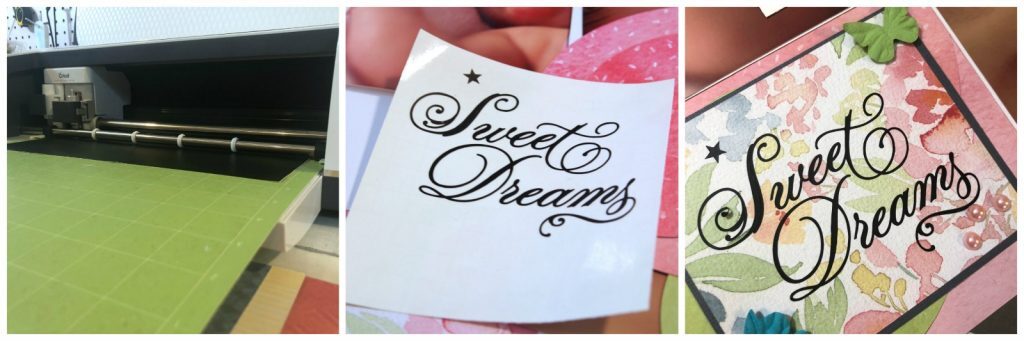
Selecting and utilizing fonts effectively in Cricut for scrapbooking is vital for enhancing the visual appeal of your layouts. A well-chosen font can convey emotions, themes, and narratives that complement your photos and embellishments. This section will guide you through the process of selecting fonts, personalizing text, and understanding the impact of typography on your scrapbooking projects.Choosing the right fonts involves exploring various options available in Cricut Design Space.
The platform offers a wide variety of fonts, including script, serif, and sans-serif styles, allowing scrapbookers to find the perfect match for their theme. When selecting a font, consider the following factors:
- Readability: Ensure that the font is easy to read, especially for titles and important text. Avoid overly decorative fonts for lengthy passages.
- Theme Consistency: Match the font style with the overall theme of your scrapbook. For a vintage theme, consider using classic serif fonts; for a whimsical theme, playful script fonts may work best.
- Layering and Alignment: Pay attention to how the font interacts with other design elements. Fonts that layer well with images and other embellishments can create a cohesive look.
Personalizing Text Elements in Scrapbook Layouts
Personalization adds a unique touch to scrapbook pages, making them more meaningful. Here are some effective strategies to customize text in your layouts:
- Use of Color: Select colors that complement your photos and overall design. Experiment with different shades to make the text stand out or blend harmoniously.
- Text Effects: Utilize shadow, offset, and contour effects available in Cricut Design Space. These techniques can add depth and dimension to your text, enhancing its visual impact.
- Using Multiple Fonts: Combining different fonts can create visual interest. Pair a bold font for headings with a more delicate font for subtext or captions to create a dynamic contrast.
The importance of typography in enhancing scrapbook designs cannot be overstated. Typography not only influences the aesthetic of your pages but also serves to guide viewers through the story you are telling. Well-chosen fonts can evoke specific feelings and create a connection with the viewer.
“Typography is the craft of endowing human language with a durable visual form.”
When integrating typography into your scrapbook layouts, consider the following elements that contribute to a successful design:
- Hierarchy: Establish a clear visual hierarchy by varying font sizes and weights. This helps direct attention to the most important text elements.
- Spacing: Adequate spacing between letters, words, and lines can enhance readability and overall appearance. Don’t hesitate to adjust these settings in Cricut Design Space.
- Consistency: Maintain a consistent font style throughout your scrapbook to create a unified look. This includes using the same font family or complementary fonts for different sections of your layouts.
Embellishments and Finishing Touches
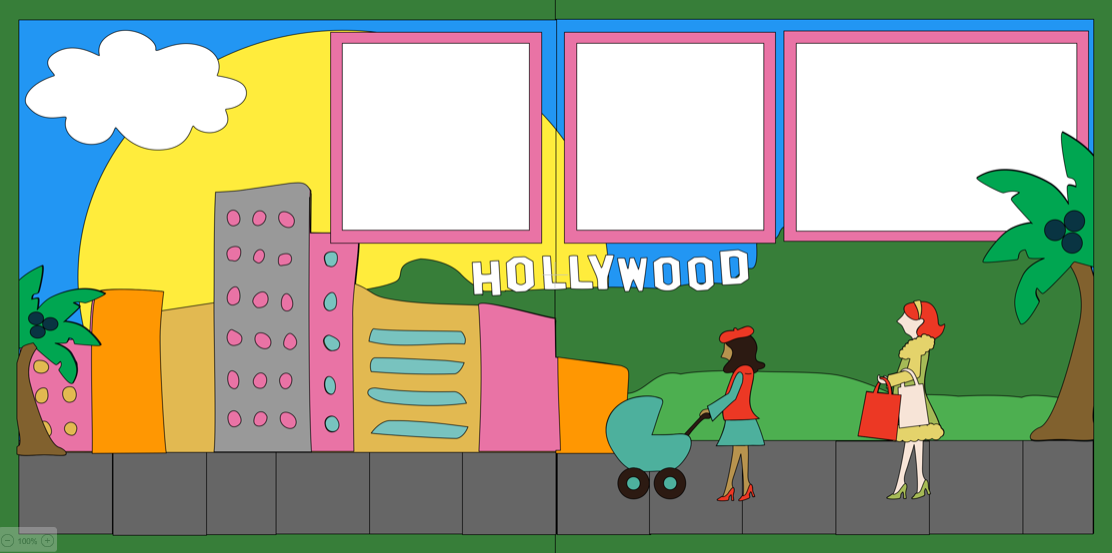
Embellishments are essential elements in scrapbooking that enhance the visual appeal of layouts. They provide depth, texture, and personal touches, transforming simple pages into works of art. With the capabilities of a Cricut machine, you can create a plethora of custom embellishments that complement your scrapbook themes and styles.Creating embellishments with Cricut allows scrapbookers to tailor their projects specifically to their creative visions.
Various methods can be employed to add texture and dimension to scrapbook pages, making them more engaging. Techniques such as layering, using different materials, and adding 3D elements can dramatically elevate the overall appearance of your layouts.
Embellishment Options Created with Cricut
The versatility of Cricut machines enables the crafting of numerous embellishments that can be customized to fit any scrapbook project. Here are some popular embellishments that can be easily created, along with methods to make them:
- Die-Cut Shapes: Use the Cricut to cut out various shapes, such as flowers, stars, or hearts. These die-cuts can be layered or used as standalone pieces to enhance the layout.
- 3D Flowers: By cutting flower shapes from multiple layers of cardstock, you can create beautiful 3D flowers. Simply curl the edges and layer them for added dimension.
- Stickers: Design and cut custom stickers using adhesive vinyl. Personalize them with quotes, images, or intricate designs that fit your scrapbook theme.
- Shaker Cards: Craft fun shaker embellishments by creating a frame and filling it with sequins or beads. The Cricut can cut the necessary components to make these interactive elements.
- Tags: Tags are versatile embellishments that can be used for journaling or decoration. The Cricut can cut tags in various shapes and sizes, allowing for personalization.
- Wooden Embellishments: Use the Cricut to cut designs out of thin wood veneer. These add a unique texture and rustic feel to scrapbook pages.
- Fabric Accents: With the ability to cut fabric, the Cricut can create fabric embellishments like bows or appliqués that add a soft texture to your layouts.
Adding dimension and texture to scrapbook pages is a crucial step in creating visually appealing crafts. Techniques to achieve this include:
- Layering: Overlapping various elements creates depth. Use foam adhesive squares between layers to elevate certain pieces.
- Using Mixed Media: Incorporate materials such as paint, ink, or texture paste to create backgrounds that pop.
- Creating Shadows: Cut duplicate shapes in different colors and slightly offset them to create a shadow effect.
- Incorporating Ribbons and Twine: Use fibers to tie elements together or to add visual interest around photos.
- Adding Interactive Elements: Utilize flaps, pockets, and sliders to make pages more engaging and dynamic.
By leveraging these Cricut capabilities, scrapbooking enthusiasts can enrich their projects with customized embellishments that truly represent their style. The meticulous attention to detail in these finishing touches not only enhances the aesthetics of scrapbook layouts but also makes them cherished keepsakes for years to come.
Troubleshooting Common Issues
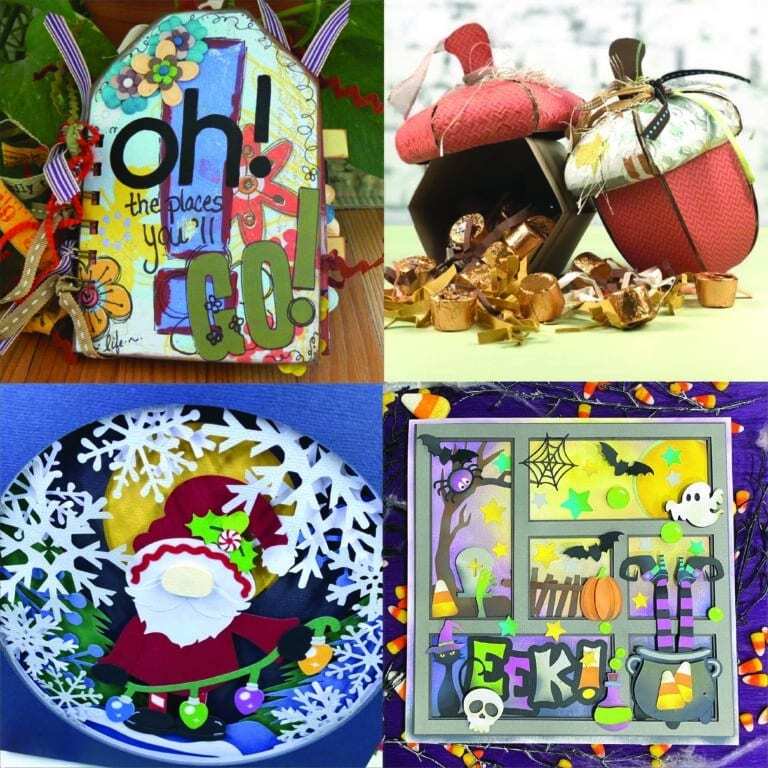
Cricut machines are powerful tools that can enhance your scrapbooking experience, but like any technology, they may encounter issues during setup or operation. Understanding common problems and their solutions can help ensure a smooth crafting process and prevent frustration. Below, we address frequent challenges faced by users and offer effective maintenance tips to keep your Cricut running optimally.
Common Setup and Cutting Issues
Setting up your Cricut correctly is essential for achieving quality cuts and designs. However, issues may arise even with proper setup. Here are some common problems along with their solutions:
- Mat Not Feeding Properly: Ensure that the mat is aligned correctly with the rollers. If the mat is too sticky, clean it with a damp cloth to remove excess adhesive.
- Cutting Depth Not Set Correctly: Always verify that the blade depth is adjusted according to the material you are using. Consult the material settings guide for the appropriate depth.
- Design Not Cutting as Intended: Check that the design is within the printable area of the mat. Adjust the design size if necessary and ensure the material selected matches the design settings.
Maintenance Tips for Cricut Machines
Maintaining your Cricut machine is crucial to prolong its lifespan and functionality. Regular upkeep can prevent many common problems associated with cutting and setup. Implement the following practices:
- Regular Cleaning: Clean the blade and housing after each use to prevent build-up of paper residue and adhesive. Use a soft brush or cloth to remove debris from the machine.
- Update Software: Keep the Cricut Design Space software up to date to benefit from the latest features and bug fixes. Regular updates can improve performance and compatibility with designs.
- Inspect the Mat: Replace the cutting mat when it becomes worn or loses its stickiness. A worn mat can lead to misalignment and poor cutting results.
Fixing Design Flaws in Layouts
Even the best designs can encounter flaws during the crafting process. Addressing these issues promptly can enhance the overall quality of your scrapbook layouts. Consider the following strategies:
- Adjusting Misaligned Cuts: If a cut is misaligned, carefully trim the edges of the design with scissors to smooth out any uneven areas. This can enhance the overall appearance of your layout.
- Correcting Color Issues: If a design does not show the intended colors, double-check the material settings and ensure that the color profiles in Cricut Design Space are correctly configured.
- Reinforcing Weak Areas: For elements that may tear easily, consider adding a layer of clear adhesive or washi tape to reinforce them. This will provide stability and enhance durability.
“Regular maintenance and proper troubleshooting can significantly improve your Cricut experience, ensuring that your scrapbooking projects turn out beautifully.”
Inspiration and Resources for Scrapbookers
Finding inspiration for your scrapbook layouts is essential for maintaining creativity and enthusiasm in your projects. With the versatility of Cricut machines, the possibilities are virtually endless, allowing scrapbookers to explore various themes, styles, and techniques. There are numerous resources available that can fuel your imagination and help you discover new ideas.One of the most rewarding aspects of scrapbooking is being part of a community that shares your passion.
Engaging with fellow enthusiasts can provide invaluable support, fresh perspectives, and innovative techniques that enhance your projects. Online communities and forums dedicated to Cricut scrapbooking offer an excellent platform for sharing ideas and receiving feedback.
Online Platforms for Inspiration
Several online platforms serve as rich sources of inspiration for scrapbook layouts, especially for Cricut users. Below are some recommended sources where you can explore creative ideas and connect with other scrapbookers:
- Pinterest: A visual discovery platform where you can find thousands of scrapbook layout ideas, including those specifically tailored for Cricut. Users can create boards to save their favorite designs and techniques.
- Instagram: By following popular scrapbooking hashtags and accounts, you can discover stunning layouts and innovative uses of Cricut machines. The visual nature of Instagram makes it ideal for inspiration.
- YouTube: A plethora of video tutorials are available that showcase step-by-step processes for creating scrapbook layouts with Cricut. Content creators often share tips and tricks that can enhance your skills.
- Facebook Groups: Joining groups focused on Cricut scrapbooking can connect you with like-minded individuals. These communities often share their creations, challenges, and successes, fostering a supportive environment.
Recommended Blogs and Tutorials
Exploring blogs and video tutorials can significantly elevate your scrapbooking skills. Here are some valuable resources that offer advanced techniques and insightful tips for Cricut scrapbooking:
- Jennifer McGuire Ink: This blog provides extensive tutorials and project ideas, focusing on card making and scrapbooking, with a section dedicated to using Cricut.
- Cricut Blog: The official Cricut blog frequently shares project ideas, tips, and inspiration directly from the Cricut community.
- Scrapbook.com: A popular website that offers a range of tutorials and articles focused on scrapbooking with Cricut, including advanced techniques and product recommendations.
- Youtube Channels: Channels like “Cricut with Heart” and “Maymay Made It Crafts” provide engaging and informative content, covering a wide array of Cricut techniques and project ideas.
“Inspiration is everywhere; you just need to know where to look and how to capture it.”
Engaging with these resources will not only inspire you but also help you refine your skills as a Cricut scrapbooker. Embrace the wealth of information available, and let your creativity flourish as you craft unique and memorable layouts.
Last Word
In conclusion, mastering How to Use Cricut for Scrapbooking Layouts not only enriches your crafting skills but also encourages self-expression through personalized designs. By applying the techniques and tips discussed, you can create memorable scrapbook pages that tell your story and preserve cherished moments. Embrace the creativity that Cricut brings to your scrapbooking journey and let your imagination flourish.