How to Upload Your Own Images to Cricut Design Space is a skill that unlocks a world of creative possibilities for crafting enthusiasts. By understanding the image uploading process, users can significantly enhance their design capabilities, allowing for personalized and unique projects. Cricut Design Space supports various image formats such as JPG, PNG, and SVG, enabling crafters to bring their visions to life with ease.
In this guide, we will explore the steps necessary to upload images, tips for preparing them for optimal quality, and the various ways to utilize these images in your projects, ensuring that you make the most out of Cricut Design Space.
Introduction to Cricut Design Space
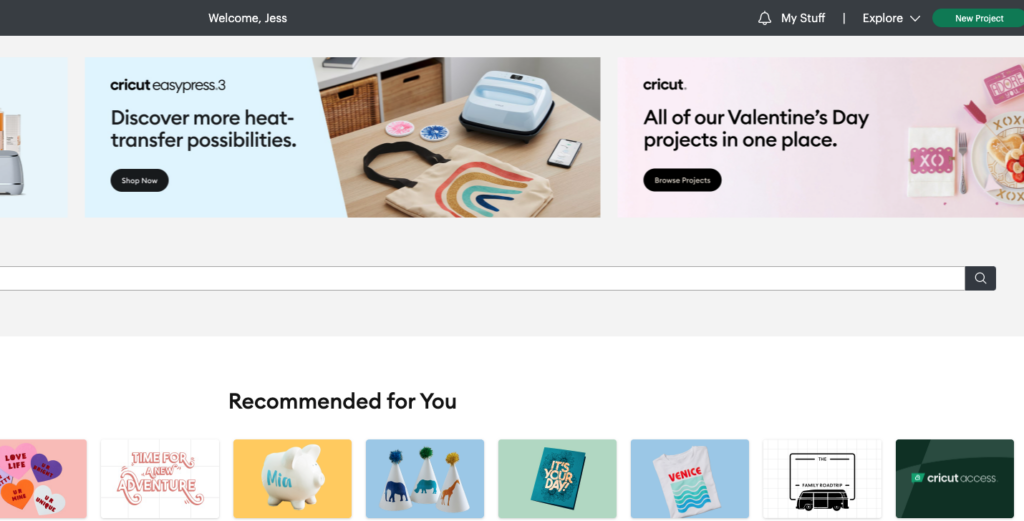
Cricut Design Space is a powerful design software that enables users to create custom projects for their Cricut cutting machines. This platform serves as a versatile hub for crafting, allowing users to design and edit a variety of projects ranging from home décor to apparel. With its user-friendly interface, Cricut Design Space makes it accessible for both beginners and experienced crafters to bring their creative ideas to life.Uploading images into Cricut Design Space significantly enhances the design capabilities, allowing users to incorporate their personal artwork or graphics into their projects.
This functionality expands the range of design options beyond the pre-existing library, enabling more unique and customized creations. It is essential to understand that Cricut Design Space supports various image formats, which facilitates the seamless integration of diverse visuals into your designs.
Types of Images That Can Be Uploaded
To maximize the creative potential within Cricut Design Space, users can upload several types of image files. It is important to choose the right format to ensure compatibility and quality in design projects. The following categories Artikel the acceptable image formats for uploading:
- JPG (JPEG): This commonly used format is ideal for photos and images with complex color variations. JPG files are compressed, which may result in slight quality loss; however, they are widely supported and can be easily created or exported from various applications.
- PNG: The PNG format supports transparent backgrounds, making it perfect for designs that require overlays or intricate details. PNG files maintain high quality and are often used for logos and graphics that need to be layered.
- SVG: Scalable Vector Graphics (SVG) are preferred for designs that involve cutting. SVG files are resolution-independent, which means they can be resized without losing quality. They are especially useful for intricate designs, as they preserve the paths and shapes used in the artwork.
Preparing Your Images for Upload
To create stunning designs in Cricut Design Space, it is essential to prepare your images properly before uploading them. This preparation not only ensures optimal quality but also helps in achieving the desired results in your projects. Understanding the nuances of image selection and editing will facilitate a smoother workflow and enhance your design outcomes.Selecting the right images is crucial for any project.
A suitable image can significantly influence the final product’s aesthetics and functionality. Consider the following criteria when choosing images for upload:
Choosing the Right Images
Selecting high-quality images ensures that your projects look professional. Here are some aspects to consider:
- Resolution: Choose images with a resolution of at least 300 DPI (dots per inch) for better clarity and detail. Low-resolution images may appear pixelated when resized.
- Image Type: Opt for images that suit your project, such as graphics for cut files or photos for print projects. Vector images (.svg, .dxf) are ideal for precise cuts.
- Background: Transparent backgrounds simplify the cutting process. Use images with clear backgrounds to avoid any unwanted cuts or shapes.
After selecting an appropriate image, editing it for quality is the next step. Editing can enhance the image’s clarity and optimize it for uploading to Cricut Design Space.
Editing Images for Optimal Quality
Editing images before uploading is important to ensure they meet the project’s requirements. Here are key editing practices:
- Crop and Resize: Adjust the dimensions to fit your project specifications, eliminating unnecessary background space that may complicate the cutting process.
- Adjust Brightness and Contrast: Improve the image’s visibility by enhancing brightness and contrast levels, making it clearer for the cutting machine to read.
- Remove Backgrounds: Use software tools to eliminate any backgrounds that may interfere with the design’s integrity. Tools like Adobe Illustrator or online background removers can be beneficial.
In some instances, you may need to convert image formats to ensure compatibility with Cricut Design Space. Certain formats work better than others, and understanding this can save you time and effort.
Converting Image Formats
Different image formats have specific functions in design projects. Knowing how to convert them effectively is crucial for a seamless upload experience:
- Common Formats: The most compatible image formats for Cricut are .svg, .png, and .jpg. Each serves a distinct purpose; for instance, .svg files are ideal for scalable designs.
- Conversion Tools: Use image editing software such as Adobe Photoshop or online converters to change formats. These tools often provide an easy interface for quick conversions.
- Saving in the Right Format: When saving your edited images, ensure to choose the appropriate file format based on the project’s needs and intended output.
By selecting high-quality images, editing them effectively, and ensuring the correct format, you will be well-prepared to upload your images to Cricut Design Space, paving the way for successful and visually appealing projects.
Step-by-Step Guide to Upload Images
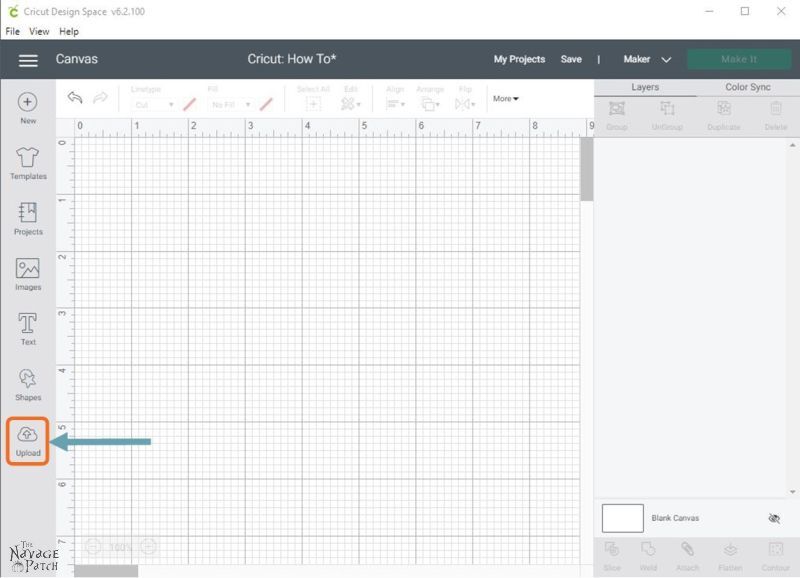
Uploading images to Cricut Design Space is a straightforward process that allows users to personalize their projects effectively. By understanding the steps involved, you can easily incorporate your own graphics and designs into your crafting process.The following guide provides a detailed walkthrough of the upload process, highlighting essential steps and common issues that may arise during the upload.
Upload Process
To successfully upload images to Cricut Design Space, follow these organized steps:
- Open Cricut Design Space: Launch the Cricut Design Space application on your device and ensure you are logged into your account.
- Select the Upload Option: On the left-hand panel, click on the “Upload” icon. This will direct you to the upload interface.
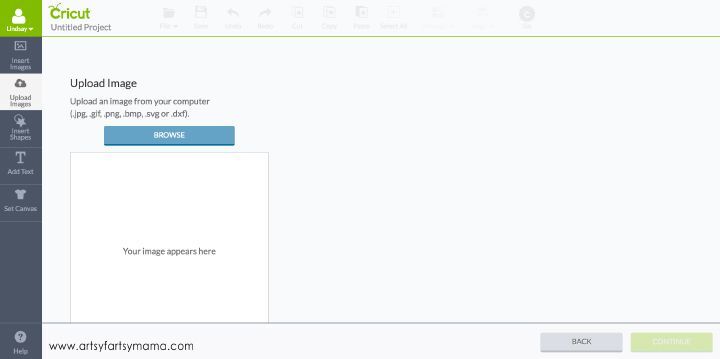
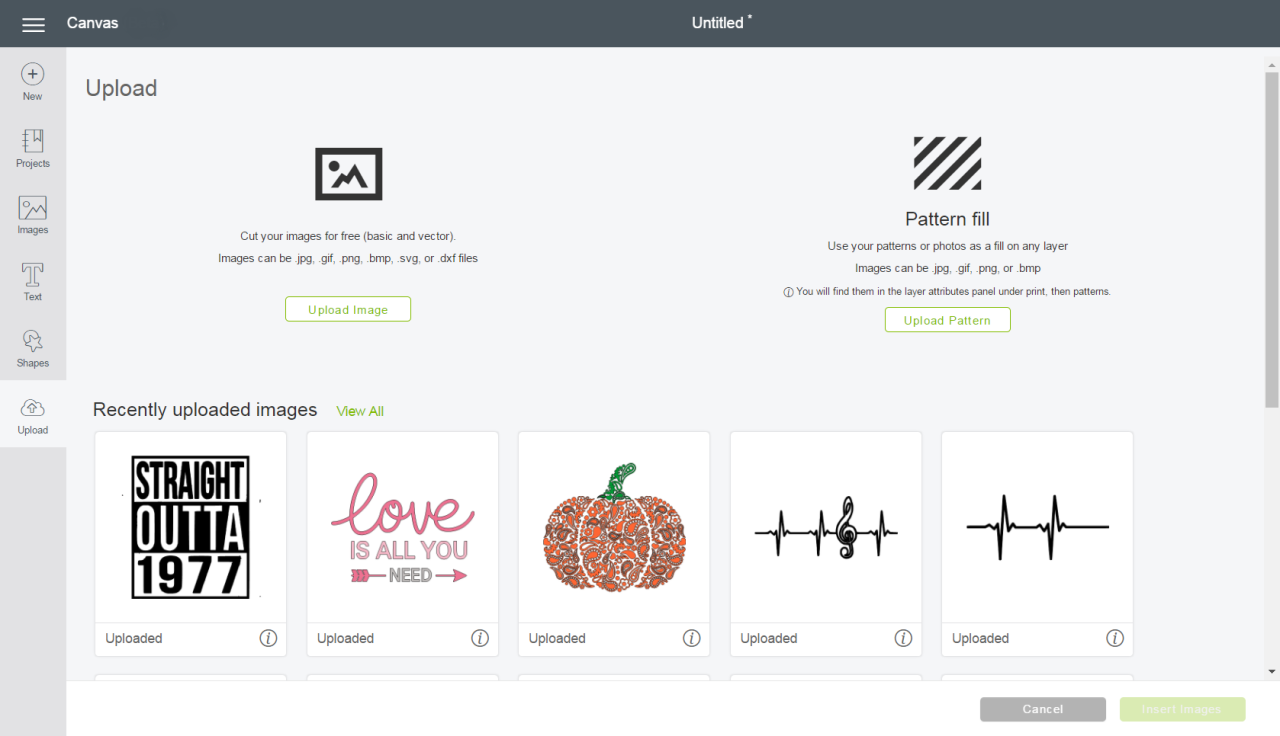
- Choose Your Image: Click on the “Upload Image” button. A dialog box will appear allowing you to browse your computer for the image you wish to upload. Select the desired file.
- Image Format: Ensure your image is in a supported format such as PNG, JPG, GIF, or SVG. If the image is not in a compatible format, you will need to convert it before uploading.
- Image Preview and Selection: After selecting your file, a preview window will display the image. Here, you can choose to upload it as a “Simple,” “Moderate,” or “Complex” image based on its detail level. Select the appropriate option for your image.
- Remove Background (if needed): If the image has an unwanted background, use the tools provided to erase it, ensuring a clean upload. This step is especially important for designs that require transparency.
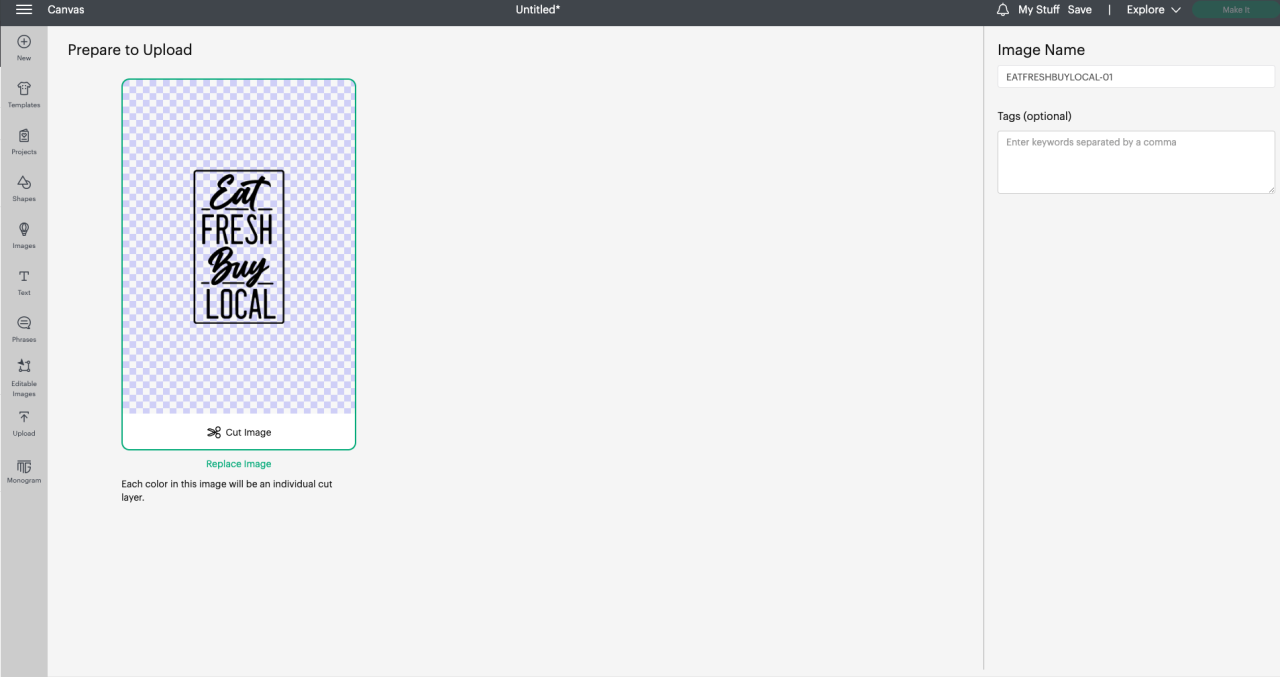
- Name and Tag Your Image: Once satisfied with the preview, enter a name and optional tags for easy searching later. This will help you keep your library organized.
- Save the Image: Click the “Save” button to complete the upload process. Your image will now be stored in your “Uploaded Images” library.
- Insert the Image into Your Canvas: To use the uploaded image in your project, select it from your library and click “Insert Images” to add it to your design canvas.
Common Issues and Resolutions
While uploading images to Cricut Design Space is generally smooth, users may encounter some common issues. Below are potential problems and their solutions:
Images not appearing in the upload interface may indicate a compatibility issue or a problem with the file format.
- Unsupported File Format: If your image does not upload, check the format. Convert it to a compatible type like PNG or JPG and try again.
- Image Quality Issues: Low-resolution images may appear pixelated. Always use high-resolution files for the best result.
- Background Removal Difficulties: If you have trouble erasing the background, ensure you’re using the “Select & Erase” tool correctly. Zoom in for precision.
- Saving Errors: If an error occurs while saving, try logging out and back in, or clearing your browser cache if using the web version.
- Long Upload Times: Large file sizes can slow down uploads. Optimize your images by reducing their dimensions or file size before attempting to upload.
Using Uploaded Images in Your Projects
Uploaded images can significantly enhance the versatility of your designs within Cricut Design Space. Understanding how to effectively manipulate and incorporate these images is essential for creating unique projects that reflect your individual style and creativity.Cricut Design Space offers various tools to manipulate uploaded images, allowing users to resize, rotate, and arrange images to fit their project needs. Utilizing these tools effectively can elevate the quality of your designs.
Image Manipulation Techniques
Manipulating uploaded images is a straightforward process that enhances the flexibility of your designs. Users can easily resize images by dragging the corners of the image bounding box. This allows for precise adjustments to fit your design specifications.Rotating images is equally simple. By clicking on the circular handle surrounding the image, you can rotate it to the desired angle. This feature is particularly useful for creating dynamic compositions by adjusting the orientation of elements within your design.Additional features include:
- Flipping: Images can be flipped horizontally or vertically, providing an alternative perspective or orientation.
- Layering: Images can be layered on top of one another, allowing for complex designs that combine multiple elements seamlessly.
- Color Adjustments: Some images can have their color altered or adjusted to better match your project theme.
Incorporating Multiple Images into a Single Design
Combining multiple images into a single design can enhance visual storytelling in your projects. To incorporate multiple images, first upload all the desired images into the Design Space. Once uploaded, you can select each image and position them on the canvas as needed.Considerations for combining images include:
- Alignment: Use the alignment tools to ensure that images are evenly spaced and aligned for a professional look.
- Grouping: Grouping images together allows for easier manipulation as a single entity, simplifying the editing process.
- Layer Order: Adjust the layer order to determine which images appear on top, ensuring the focal point of your design is effectively communicated.
Project Examples Using Uploaded Images
The creative possibilities with uploaded images in Cricut Design Space are virtually limitless. Here are some project ideas that showcase the versatility of using your own images:
1. Custom T-Shirts
Use personal graphics or photographs to create unique apparel that reflects your personality or brand.
2. Personalized Cards
Incorporate images into greeting cards for special occasions, enhancing the emotional impact through custom visuals.
3. Home Décor
Create wall art by combining various images and text, producing a personalized piece that complements your home’s interior design.
4. Scrapbooking
Use uploaded images to enhance your scrapbook pages, capturing memories with a custom touch that highlights individual stories.These examples illustrate how uploaded images can be transformed into tangible projects, allowing for a wide range of applications that cater to different creative needs. By mastering the manipulation and integration of images, users can unlock their full creative potential within Cricut Design Space.
Troubleshooting Common Upload Issues
Uploading images to Cricut Design Space can sometimes present challenges. Users frequently encounter various issues that can disrupt their creative workflow. Understanding these common problems and how to resolve them can enhance your experience and ensure a smoother design process.One of the most notable issues pertains to file format compatibility. Cricut Design Space supports specific image file formats, and using unsupported formats can lead to upload failures.
The recommended formats include PNG, JPG, GIF, and SVG. However, if an unsupported file type is attempted, users may receive an error message indicating the issue.
File Format Compatibility Issues
It’s essential to ensure that the images you intend to upload are in the correct format. Below are common file types and their characteristics:
- PNG: Ideal for images with transparent backgrounds, allowing for versatile layering.
- JPG: Suitable for photos and images without transparency but can result in a larger file size.
- GIF: Primarily used for simple graphics and animations, though not ideal for detailed images.
- SVG: Vector format preferred for scalable graphics that retain quality at any size.
In cases where the file format is correct but the upload fails, images may be too large or contain excessive detail. Cricut Design Space recommends that images should not exceed 20 MB in size.
Large File Size Problems
When images exceed the maximum file size, they can cause upload errors. To alleviate this issue, consider the following strategies:
- Compress images using tools like TinyPNG or JPEGmini to reduce file size without significantly losing quality.
- Resize images to decrease dimensions, which can help in reducing the overall file size.
- Utilize simpler versions of complex images, minimizing unnecessary detail to lower the size.
Another common issue is the presence of intricate backgrounds or multiple colors that can complicate the image upload process.
Complex Image Issues
Images with intricate details can lead to difficulties during the upload and processing phases. To improve these situations, users can:
- Simplify the image by removing unnecessary elements or backgrounds in an image editing software like Adobe Photoshop or GIMP.
- Use the “Clean Up” feature in Cricut Design Space post-upload to eliminate unwanted detail.
- Convert complex images to simpler graphics to reduce upload complications.
In addition to these issues, users may experience difficulties related to software glitches or network problems during the upload process.
Software and Network Issues
Encountering glitches while uploading can be frustrating. Here are some solutions to consider:
- Ensure that your Cricut Design Space application is updated to the latest version for optimal performance.
- Check your internet connection stability, as a poor connection can hinder uploads.
- Restart the application or your device, as this can resolve temporary software issues.
Finally, Cricut provides a range of help resources to assist users encountering upload issues.
Help Resources in Cricut Design Space
Cricut Design Space includes various support options such as tutorials, community forums, and direct customer support. Leveraging these resources can guide users through troubleshooting their upload challenges more effectively.
- Visit the Help Center within the Cricut Design Space for comprehensive guides and FAQs on common issues.
- Engage with the online community through forums and social media for shared experiences and solutions.
- Contact Cricut Support directly for personalized assistance with persistent problems.
By recognizing these common issues and utilizing the provided resources, you can enhance your image upload experience and streamline your creative workflow in Cricut Design Space.
Best Practices for Image Uploading
When creating projects in Cricut Design Space, uploading your own images can significantly enhance the customization and uniqueness of your designs. However, there are essential best practices to consider to ensure that your images are of the highest quality and are organized for optimal usability. By adhering to these guidelines, users can streamline their design process and achieve visually appealing results.
Image Resolution and Clarity
Maintaining high image resolution and clarity is crucial when uploading images to ensure that the details are preserved in your projects. Low-resolution images can appear pixelated or blurry, diminishing the overall quality of the final design.
High-resolution images (300 DPI or higher) are recommended for crisp and clear results.
To achieve the best outcome, consider the following tips regarding image resolution:
- Always use images that are at least 300 DPI for optimal printing quality. This ensures the images are sharp and detailed.
- Avoid enlarging smaller images, as this can lead to distortion and loss of quality. Instead, select images that are already at an appropriate size for your project.
- Utilize vector images (like SVG files) when possible, as they can be scaled without losing quality, providing flexibility in design.
Organizing Images in Cricut Design Space
Efficient organization of your uploaded images in Cricut Design Space enhances accessibility and simplifies the design process. A well-organized collection allows for quicker retrieval and reduces frustration when searching for specific images.To achieve effective organization, consider the following strategies:
- Create folders for different themes, such as holidays, events, or types of projects (e.g., cards, home decor).
- Utilize descriptive naming conventions for your images to make searching easier. For example, use names that reflect the content or purpose of the image.
- Regularly review and delete images that are no longer needed or that do not meet your quality standards, keeping your workspace clutter-free.
Maintaining Consistent Style or Theme
Consistency is key in design, as it helps create a cohesive look across your projects. When using uploaded images, maintaining a consistent style or theme will enhance the overall aesthetic and impact of your designs.To ensure consistency in your projects, consider the following practices:
- Choose images that share a common color palette or style. This can unify your design and make it more visually appealing.
- Limit the use of various design elements. Stick to a specific set of images, fonts, and colors that represent your brand or project theme.
- Regularly reference a mood board or design guide to keep your projects aligned with your intended aesthetic.
Advanced Techniques for Image Use
Utilizing advanced techniques within Cricut Design Space can significantly enhance your creative projects. By mastering the use of uploaded images, you can create unique, custom designs that elevate your work. This section delves into methods for crafting intricate designs, applying layers and effects, and showcases examples of complex projects that benefit from these advanced features.
Creating Custom Designs with Uploaded Images
Leveraging uploaded images in Cricut Design Space allows for endless creative possibilities. One effective method for creating custom designs involves combining multiple images into a cohesive design. This can be achieved through the following steps:
1. Layering Images
Start by uploading several images that you wish to combine. Use the “Arrange” tool to layer them as desired, adjusting their positions and sizes to create depth.
2. Using the Contour Feature
This feature allows you to hide or show specific areas of an image, enabling you to refine your design. For example, if you upload a floral image, you can use Contour to isolate individual petals for a more intricate look.
3. Grouping Elements
Once your images are layered and adjusted, group them together to keep your design organized. This facilitates easy adjustments and movement as you work on your project.
Applying Layers and Effects
Layers and effects are essential in enhancing the visual appeal of your designs. Each uploaded image can be manipulated to achieve various outcomes. Consider the following techniques:
Creating Shadows
By duplicating an image and changing the color to a darker shade, you can create a shadow effect that adds dimension to your design. Position the duplicate slightly offset from the original image.
Adding Textures and Patterns
Utilize the “Fill” option to apply textures or patterns to your images. For instance, applying a wood grain pattern to a cut-out shape can give it a rustic charm.
Utilizing the Slice Tool
This tool allows you to create new shapes by slicing one image from another. For example, you can slice a heart shape from a floral pattern to create a unique design element.
Examples of Complex Projects
Complex projects often incorporate multiple techniques and effects, showcasing the full potential of Cricut Design Space. Here are a few examples:
Layered Paper Flowers
This project involves uploading floral images, using the Contour feature to create various petal shapes, and layering them to form three-dimensional flowers. Using different colors and textures adds richness to the final product.
Customized Home Décor Signs
Create a sign by layering text and images. Upload a decorative border and overlay customized text, utilizing shadows to create depth. This method can be applied to various themes, from family names to motivational quotes.
Intricate Greeting Cards
Design a pop-up greeting card by layering images that come together when the card is opened. By carefully placing and slicing images, you can create a stunning visual effect that impresses recipients.
Outcome Summary
In summary, mastering the techniques for uploading your own images to Cricut Design Space can elevate your crafting experience, offering you the flexibility to create custom designs tailored to your preferences. By following the Artikeld steps and troubleshooting common challenges, you can unleash your creativity and produce stunning projects. Embrace these best practices to ensure your image uploads are seamless and effective, and enjoy the journey of crafting with Cricut.