How to Fix Your Cricut When It’s Not Cutting Correctly serves as a comprehensive guide for Cricut users encountering challenges with their machines. Understanding the intricacies of how a Cricut operates and recognizing the signs of cutting issues can transform your crafting experience. This article will unveil practical solutions and maintenance tips to ensure your Cricut performs at its best, empowering you to create without frustration.
By exploring the fundamental functionalities of the Cricut, diagnosing common problems, and implementing effective maintenance practices, you will be well-equipped to overcome any cutting obstacles. Whether you’re a novice or a seasoned crafter, this guide will enhance your understanding and provide you with the tools to achieve successful projects.
Understanding Cricut Functionality
The Cricut machine is a versatile crafting tool that cuts a variety of materials with precision. To effectively troubleshoot and ensure optimal performance, it’s essential to understand its basic components and how they work together. This knowledge not only aids in identifying problems but also enhances the overall crafting experience.The Cricut machine consists of several key components, including the cutting blade, mat, rollers, and the housing unit.
Each part plays a vital role in the cutting process. The cutting blade is responsible for slicing through materials, while the mat provides a sticky surface to hold the material in place. Rollers work to feed the material into the machine smoothly, ensuring an even cut. The housing unit encases the blade and allows it to move in various directions to achieve intricate designs.
Cutting Mechanism Operation
Understanding how the cutting mechanism operates is crucial for successful projects. The cutting process begins with the machine receiving a digital design from a connected device. Once the design is uploaded, the Cricut uses a carriage system that moves the blade back and forth while the material is fed in. This coordinated movement allows the machine to cut detailed shapes and patterns effectively.
Several factors can lead to a Cricut failing to cut correctly, impacting the quality of your projects. Below are common reasons for cutting issues:
- Blade Condition: A dull or damaged blade can result in incomplete cuts or tearing of the material.
- Material Thickness: Using incompatible materials or not adjusting settings for material thickness can lead to improper cutting.
- Mat Adhesiveness: A worn-out mat may not hold the material securely, causing misalignment during cuts.
- Software Settings: Incorrect settings in the Cricut Design Space application can affect the cutting process, leading to errors.
- Calibration Issues: If the machine is not calibrated correctly, it can misinterpret the cutting dimensions, resulting in inaccuracies.
It is important to regularly inspect and maintain each component of your Cricut machine to minimize these issues and prolong its lifespan.
Regular maintenance and understanding the functionality of your Cricut machine are key to achieving precise and successful cuts.
Diagnosing Cutting Issues
When operating a Cricut machine, encountering cutting issues can be a frustrating experience, as it affects the overall quality and precision of your crafting projects. Recognizing the symptoms of these problems is the first step toward resolving them effectively. A systematic approach to diagnosing these issues will help you restore your machine to optimal functionality, ensuring smoother and more accurate cuts in your future crafting endeavors.Identifying the symptoms of cutting problems is essential for troubleshooting.
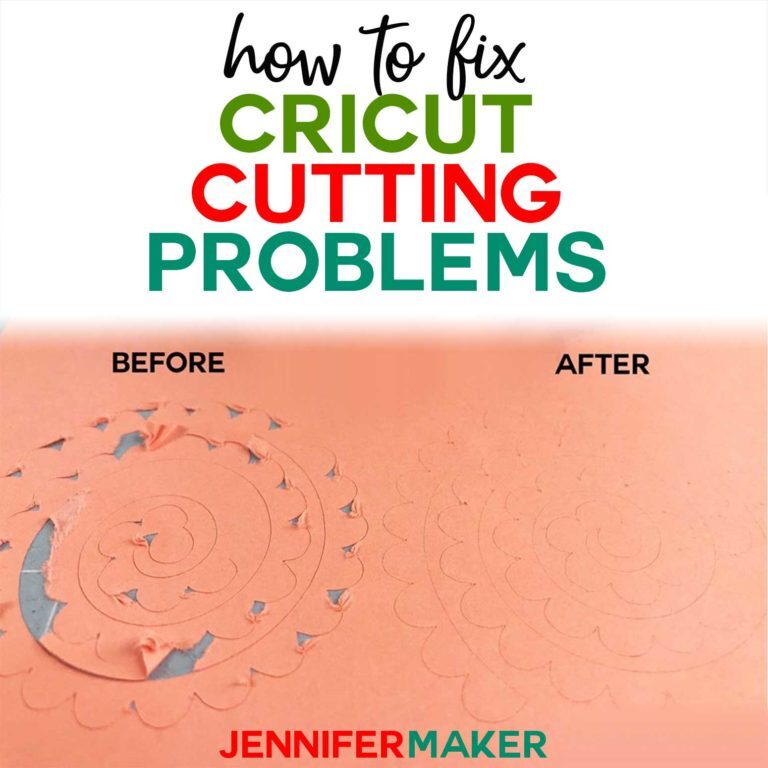
Common signs include incomplete cuts, jagged edges, or the blade not cutting through the material entirely. These issues can arise from a variety of factors, including blade wear, incorrect settings, or material compatibility. To address these symptoms, it’s crucial to evaluate the performance of the machine methodically.
Symptoms Indicating Cutting Problems
A clear understanding of the symptoms that may indicate cutting problems will allow you to take the necessary corrective actions. Here are some key indicators to look out for:
- Incomplete cuts, where the design is not fully separated from the material.
- Jagged or uneven edges, suggesting that the blade is either dull or not aligned correctly.
- Material tearing instead of clean cuts, indicating excessive pressure or an inappropriate blade for the material type.
- Cutting at an angle, which may point to misalignment or issues with the cutting mat.
Troubleshooting Cutting Accuracy
Troubleshooting cutting accuracy involves a series of diagnostic steps that can help pinpoint the root cause of the issue. Here are effective methods to troubleshoot:
1. Check the Blade Condition
A dull or damaged blade can significantly affect cutting precision. Ensure that the blade is sharp and not worn out. Replace it if necessary.
2. Inspect the Cutting Mat
A worn-out or dirty cutting mat may not hold the material securely, leading to inaccurate cuts. Clean or replace the mat as needed.
3. Review Material Settings
Confirm that the material settings in the software match the actual material you are using. Incorrect settings can lead to under or over-cutting.
4. Examine Machine Calibration
Sometimes, the machine may require calibration. Follow the manufacturer’s instructions to recalibrate the machine if discrepancies are noted.
5. Evaluate Pressure Settings
The pressure setting controls how hard the blade presses into the material. Adjust this setting based on the type of material being used, as some may require lighter or heavier pressure.
Checklist for Evaluating Machine Performance
A comprehensive checklist can assist in evaluating the performance of your Cricut machine and ensuring it operates correctly. Consider the following items:
- Is the blade clean and sharp?
- Is the cutting mat in good condition and free from debris?
- Are the material settings accurately configured in the software?
- Is the machine properly calibrated and aligned?
- Are the pressure settings appropriate for the material type?
By systematically addressing these concerns, you can effectively diagnose and resolve cutting issues with your Cricut machine. Accurate troubleshooting not only improves the quality of your projects but also extends the lifespan of your machine, ensuring that it continues to serve your crafting needs for years to come.
Maintenance Tips for Optimal Performance

To ensure your Cricut machine operates at peak efficiency, routine maintenance is essential. Regular upkeep not only prolongs the life of your machine but also enhances the quality of your cuts, resulting in better crafting outcomes. By incorporating a structured maintenance schedule, users can effectively manage the health of their Cricut and avoid common cutting issues.
Routine Maintenance Practices
Implementing routine maintenance practices is vital for the longevity of your Cricut. These practices include regular cleaning, monitoring wear and tear, and replacing components as needed.
- Cleaning the Machine: Dust and debris can accumulate on the exterior and interior of the Cricut. Use a soft, lint-free cloth to wipe the outer surfaces, and a small brush or vacuum attachment to remove particles from hard-to-reach areas.
- Checking Connection Points: Ensure that all connections, including the USB and power cords, are secure and free from damage. Loose connections can lead to performance issues.
- Updating Firmware: Keep your Cricut’s firmware updated to benefit from the latest improvements and fixes, which can enhance performance and user experience.
Cleaning and Checking Machine Components
Establishing a clear schedule for cleaning and checking machine components can prevent breakdowns and ensure consistent performance. Regular inspections are essential to identify potential issues early.
- Weekly Cleaning: Set aside time each week to clean the blade housing, cutting mat, and exterior surfaces of the machine.
- Monthly Checks: Inspect the roller wheels and cutting strip for signs of wear and tear. These components experience significant friction and should be monitored closely.
- Quarterly Maintenance: Every three months, perform a more thorough inspection of the internal components of the Cricut, ensuring that no fabric or paper remnants are affecting performance.
Replacing Blades and Mats Effectively
Knowing how to replace blades and mats properly can significantly enhance the cutting performance of your Cricut. Dull blades and worn-out mats lead to inaccurate cuts and can damage materials.
- Blade Replacement: To replace the blade, open the blade holder by pressing the button and remove the old blade. Insert the new blade, ensuring it is secure, and close the holder. Always use the appropriate blade type for your specific project.
- Mat Replacement: Inspect your cutting mat regularly. When it becomes less sticky or shows signs of damage, it is time to replace it. To do so, carefully peel the old mat off the machine and align the new mat with the machine guides before securing it.
“Regular maintenance not only prevents problems but also ensures consistent quality in your cutting projects.”
Adjusting Machine Settings

Adjusting the settings on your Cricut machine is crucial for ensuring optimal cutting performance. By fine-tuning the pressure, speed, and material settings, users can achieve precise cuts and avoid common issues that may arise. Understanding how to calibrate your machine will also enhance its longevity and effectiveness for various projects.
Step-by-step Guide to Adjust Pressure and Speed Settings
Adjusting the pressure and speed settings of your Cricut machine can significantly influence the quality of your cuts. The following steps Artikel how to modify these settings effectively:
1. Access the Settings Menu
Begin by turning on your Cricut machine and navigating to the settings menu on the device or the Cricut Design Space application.
2. Select Material Type
Choose the material you are working with from the list provided. This selection will help determine the recommended pressure and speed settings.
3. Adjust Pressure
Locate the pressure setting option, which may be labeled as “More,” “Less,” or “Default.”
For thicker materials, select “More” to increase cutting pressure.
For thinner materials, opt for “Less” to reduce pressure.
4. Modify Speed
Find the speed setting in the same menu.
A higher speed allows for quicker cuts but may compromise precision; use lower speeds for intricate designs.
5. Test Cuts
After adjustments, perform test cuts on scrap material to confirm the settings yield the desired results.
Selecting Appropriate Material Settings for Different Projects
Choosing the correct material settings is essential for achieving the best outcomes with your Cricut projects. Each material requires specific settings to ensure clean cuts and optimal adhesion. Below are some common materials and their recommended settings:
Vinyl
Typically requires low pressure and medium speed for precise cuts without tearing.
Cardstock
A higher pressure setting is suitable for cardstock to ensure clean cuts, while a moderate speed is recommended to maintain accuracy.
Fabric
Adjust the pressure to “More” for fabric cuts to accommodate the texture, and use a lower speed to avoid fraying.
Wood
For materials like balsa wood, use high pressure with a slower speed to ensure thorough cutting without damaging the material.Selecting the right material settings will not only improve the quality of your cuts but also enhance the overall durability of your projects.
Calibration Importance and Procedure
Calibration is a critical process that ensures your Cricut machine cuts accurately according to design specifications. Proper calibration can prevent cutting errors and prolong the lifespan of your machine. Follow these steps to calibrate your Cricut:
1. Initiate Calibration
Open the Cricut Design Space application and select the calibration option from the settings menu.
2. Follow On-screen Instructions
The software will guide you through the process, which typically involves placing a test sheet on the cutting mat.
3. Perform Test Cuts
The machine will make several cuts, usually in a grid pattern, to assess alignment and accuracy.
4. Review Results
After the test cuts, evaluate the output. You may need to repeat the calibration if discrepancies are noticed.
5. Save Settings
Once the calibration is satisfactory, save your settings to ensure future cuts maintain accuracy.Regular calibration of your Cricut machine is recommended, especially after changing blades or materials, to maintain the highest quality of cutting performance.
Material Selection and Preparation

Selecting the appropriate materials for your Cricut machine is crucial for successful cutting results. Different materials can significantly impact the performance and effectiveness of your projects. Proper preparation of these materials further ensures that your Cricut operates optimally and produces precise cuts.When considering the materials to use with your Cricut, it is essential to choose those that are compatible with the machine’s capabilities.
The following points highlight key considerations in material selection:
Compatible Materials for Cutting
Understanding the types of materials that work best with your Cricut machine is vital for achieving excellent results. The following list Artikels various materials, along with their suitability for cutting:
- Cardstock: A versatile and widely-used material, cardstock is ideal for detailed cuts and intricate designs. It comes in various weights, ideally ranging from 65 lb to 110 lb for optimal cutting.
- Vinyl: Suitable for both indoor and outdoor projects, vinyl cuts easily and adheres well to various surfaces. Use adhesive vinyl for permanent applications and heat transfer vinyl for fabric projects.
- Paper: Regular paper can be used for simple designs, while specialty papers such as glitter or foil paper can add a unique touch to projects.
- Fabric: For fabric projects, ensure that you use a rotary blade and choose lightweight fabrics to prevent fraying and ensure clean cuts.
- Wood and Leather: Thicker materials like balsa wood or leather require a stronger blade, such as the knife blade, and may necessitate multiple passes for a clean cut.
Proper preparation of materials is essential for achieving the best cutting performance. Ensuring that the materials are free from wrinkles, creases, and debris will contribute to cleaner cuts and better adherence during the cutting process.
Material Preparation Techniques
Before cutting, the way you prepare your materials can significantly enhance the overall outcome of your projects. Consider the following steps to ensure that your materials are ready for cutting:
- Flatten and Smooth: Use a brayer or a similar tool to smooth out any wrinkles or bubbles on the surface of the material. A flat surface promotes even cuts.
- Measure and Align: Accurate measurements and alignment of your material on the cutting mat are critical. Ensure that the material is securely adhered to the mat to avoid any shifting during the cutting process.
- Choose Correct Settings: Select the appropriate material setting on your Cricut machine. This setting optimizes the blade depth and pressure, ensuring precise cuts for the chosen material.
Different materials can yield varying results during the cutting process. For instance, heavier materials may require increased blade pressure and cutting speed, whereas lighter materials may need less force to avoid tearing.
Effects of Material Differences on Cutting Performance
The type of material significantly influences the cutting performance of your Cricut machine. Below are key considerations regarding how variations in materials can affect outcomes:
- Weight and Thickness: Heavier materials may require the use of specialized blades and settings, while lighter materials are typically easier to cut but may not hold intricate designs well.
- Texture and Surface Finish: Textured materials can impact the blade’s cutting efficiency, whereas smooth surfaces generally result in cleaner cuts.
- Adhesive Properties: Materials with strong adhesive backs, such as vinyl, can sometimes pull on the blade, resulting in jagged cuts if not handled properly.
Overall, the careful selection and preparation of materials for your Cricut machine play a significant role in achieving high-quality cuts and successful crafting results. Taking the time to understand the materials you are using will ultimately enhance your Cricut experience.
Troubleshooting Specific Cutting Problems
It is not uncommon for Cricut users to encounter specific cutting problems that can hinder their projects. Understanding these issues and their solutions can help restore optimal functionality to your machine. This section delves into common cutting problems and offers effective remedies for each situation.
Table of Common Cutting Issues and Solutions
Identifying the specific cutting issue can significantly expedite the troubleshooting process. Below is a table that Artikels prevalent cutting problems along with their corresponding solutions.
| Cutting Issue | Solution |
|---|---|
| Misaligned Cuts | Check and calibrate the machine settings to ensure proper alignment. |
| Incomplete Cuts | Adjust the pressure settings and blade depth; ensure the blade is sharp. |
| Double Cuts | Examine the design file for overlapping paths and adjust the cut settings. |
| Material Not Cutting Through | Increase the cut pressure and blade depth, and ensure the material is compatible. |
| Tearing of Material | Decrease the cutting speed and ensure the blade is properly installed. |
Fixing Misaligned Cuts
Misaligned cuts can lead to frustrating outcomes, especially when precision is key. To resolve this, it is essential to check various settings and components of the machine. Start by ensuring that the mat is securely loaded and not shifting during the cutting process. Additionally, calibrating the machine can correct alignment issues:
1. Calibrate the Machine
Follow the manufacturer’s instructions to enter calibration mode. This typically involves cutting a test shape and comparing it to the expected output.
2. Check the Blade Installation
Ensure the blade is installed correctly and is securely fastened. A loose blade can cause misalignment.
3. Mat Alignment
Verify that the cutting mat is aligned correctly with the machine’s guides. A misaligned mat can lead to skewed cuts.
Resolving Issues with Incomplete Cuts
Incomplete cuts can significantly disrupt your crafting process. This problem can arise from various factors, including blade condition and material compatibility. To effectively resolve incomplete cuts, consider the following procedures:
1. Inspect the Blade
A dull or damaged blade can fail to cut through materials completely. Replace the blade if it shows signs of wear.
2. Adjust Cutting Pressure
Higher pressure may be necessary for certain materials. Increase the pressure setting in your Cricut software based on the material type.
3. Check Material Thickness
Ensure that the material you are using is appropriate for the selected cutting settings. Thicker materials may require more adjustments.
4. Perform a Test Cut
Always perform a test cut on a small piece of the material to confirm that the settings are correct before proceeding with the entire design.By understanding and addressing these specific cutting problems, you can improve your Cricut experience and achieve better results in your projects.
Seeking Professional Help
When facing persistent issues with your Cricut machine that cannot be resolved through standard troubleshooting techniques, it may be time to seek professional assistance. Understanding when to contact customer support or a technician is crucial for restoring your machine’s functionality efficiently and effectively.Identifying the right moment to reach out for professional help often depends on the complexity of the problem and your own comfort level with troubleshooting.
If you’ve exhausted all available resources, such as user manuals, online guides, and community forums, and the issue persists, professional support becomes necessary. Common indicators include unusual noises during operation, persistent error messages, or mechanical failures that cannot be rectified through basic adjustments.
Contacting Cricut Support Effectively
For efficient communication with Cricut customer support, be prepared with specific information about your machine and the issues you are experiencing. Gather relevant details, such as your machine’s model number, firmware version, and a clear description of the problem, including any steps you have attempted to resolve it. When contacting support, consider the following methods to enhance your experience:
- Phone Support: Calling Cricut’s customer service number allows for immediate assistance. Have your information ready to streamline the process.
- Live Chat: The live chat feature on the Cricut website is an excellent way to receive real-time help without waiting for a response.
- Email Support: If your issue is not urgent, sending an email detailing your problem can be effective. Ensure you include all pertinent information to receive a comprehensive response.
- Social Media: Cricut has active support channels on platforms like Facebook and Twitter, where you can ask questions and receive guidance.
Utilizing Community Forums for Assistance
Community forums can serve as a valuable resource for Cricut users seeking support. These platforms offer a wealth of knowledge from fellow users who have encountered similar issues. Engaging with the community can provide insights that may not be available through official support channels.The benefits of participating in community forums include:
- Diverse Solutions: Users often share their unique experiences and solutions, giving you multiple approaches to resolve your issue.
- Peer Support: Connecting with others who understand the frustrations of troubleshooting can provide emotional support and encouragement.
- Resources and Tutorials: Many forums include links to helpful videos, tutorials, and step-by-step guides tailored to various Cricut models and issues.
Summary
In conclusion, addressing cutting issues with your Cricut can seem daunting, but with the right knowledge and troubleshooting techniques, you can restore its functionality. Regular maintenance, proper settings adjustments, and selecting the appropriate materials will significantly enhance your crafting experience. Should challenges persist, remember that professional assistance and community support are invaluable resources, ensuring that your creativity remains unimpeded.