Delving into How to Use the Cricut Joy for Quick and Easy Projects reveals a world of creativity and convenience for crafters of all skill levels. This compact cutting machine offers a plethora of features designed to simplify your crafting experience, making it easier than ever to bring your ideas to life. The Cricut Joy is not only user-friendly but also versatile, allowing for a wide range of projects from intricate designs to simple labels.
In this guide, we will explore the essential aspects of the Cricut Joy, from unboxing and setup to utilizing the Cricut Design Space software. With practical tips, project ideas, and troubleshooting advice, you will be fully equipped to embark on your crafting journey with confidence and ease.
Introduction to the Cricut Joy
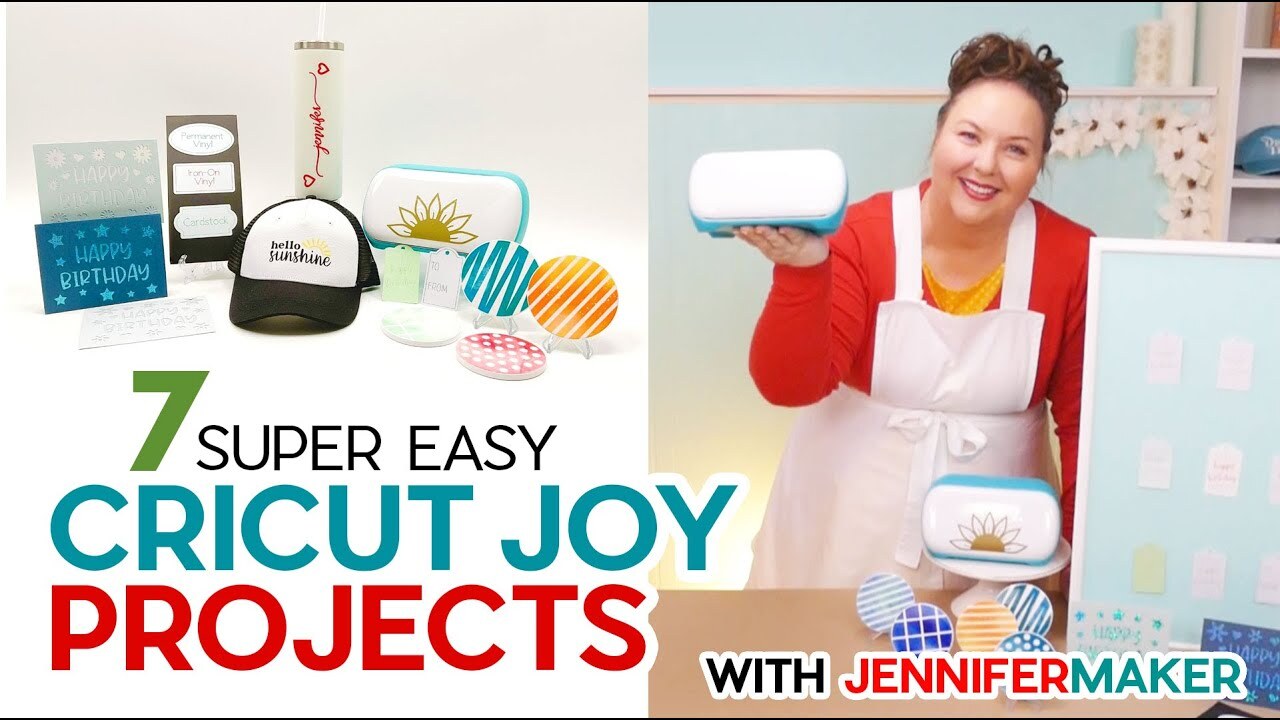
The Cricut Joy is a compact and versatile smart cutting machine designed for crafters who appreciate the convenience of quick and easy projects. With its lightweight design and user-friendly interface, this machine opens up a world of possibilities for personalizing creations from home. Its impressive features make it a favored choice among hobbyists and seasoned crafters alike, allowing for a wide array of projects that can be completed in minimal time.Equipped with a range of innovative specifications, the Cricut Joy offers precise cutting capabilities for materials such as cardstock, vinyl, iron-on, and more.
It can cut designs up to 5.5 inches wide and 48 inches long with the Smart Material compatibility, which eliminates the need for a cutting mat. This feature greatly enhances the workflow, as users can simply load the material directly into the machine. The Cricut Joy is also compatible with various design software, providing a seamless transition from digital design to physical crafting.
Features of the Cricut Joy
The Cricut Joy boasts several standout features that significantly enhance its usability and performance for crafting:
- Compact Size: The lightweight and portable design allows for easy storage and transport, making it ideal for small workspaces or crafting on the go.
- Smart Cut Technology: This technology enables the machine to cut materials with extreme precision and adaptability, catering to various project needs.
- Easy Set-Up: The machine is designed for straightforward connectivity with Bluetooth, ensuring a hassle-free setup with mobile devices and computers.
- Exclusive Smart Materials: Cricut Joy works with Smart Vinyl and Smart Iron-On, which can be used without a cutting mat, enabling longer cuts and more creative possibilities.
The combination of these features makes the Cricut Joy a highly efficient tool for anyone looking to create personalized items quickly and effectively.
Advantages of Using the Cricut Joy
Using the Cricut Joy offers numerous advantages for crafting enthusiasts. The machine’s design prioritizes user experience, allowing users to focus on creativity rather than technical challenges.
- Time Efficiency: Projects that once took hours can now be completed in minutes, allowing for more creations in less time.
- Versatile Applications: The Cricut Joy can be utilized for a variety of projects, including card-making, labeling, home décor, and gift personalization.
- Intuitive Design Software: Cricut Design Space provides an array of templates and design options, making it easy for users to create custom projects without extensive design skills.
Personal experiences reflect a positive consensus among users who appreciate the ease of crafting with the Cricut Joy. Many have shared testimonials highlighting how the machine has transformed their crafting routines, enabling them to explore new creative avenues with confidence.
Setting Up the Cricut Joy

Setting up your Cricut Joy is a straightforward process that allows you to dive into your crafting projects with confidence. Following the proper steps ensures that your machine operates efficiently and that you have all the necessary tools and materials at your disposal.To begin, unboxing your Cricut Joy is the first step in the setup process. Carefully remove the machine from its packaging, along with all included accessories.
It is essential to inspect everything to ensure you have received all components necessary for operation.
Unboxing and Initial Setup Steps
The following steps Artikel the process of unboxing and setting up the Cricut Joy:
1. Unbox the Cricut Joy
Remove the machine and all accessories from the box. Ensure you have the power cord, USB cable, and any included materials.
2. Plug in the Machine
Connect the power cord to the Cricut Joy and plug it into a power outlet.
3. Power On
Press the power button located on the front of the machine.
4. Connect to a Computer or Mobile Device
Use the USB cable to connect to a computer or ensure that your mobile device has the Cricut Design Space app installed.
5. Create a Cricut Account
If you haven’t already, sign up for a Cricut account to access the Design Space software.
6. Install Software Updates
Follow the prompts to install any necessary software updates for optimal performance.
7. Calibrate the Machine
Follow the on-screen instructions to calibrate your Cricut Joy for accurate cutting.
8. Load Materials
Insert a cutting mat with material into the machine to prepare for your first project.
Tools and Materials Needed for Initial Setup
Having the right tools and materials enhances the setup experience. Below is a list of items that are essential for the initial setup of your Cricut Joy:
- Cricut Joy machine
- Power cord
- USB cable
- Cricut cutting mat (standard grip recommended)
- Materials for cutting (e.g., cardstock, vinyl)
- Computer or mobile device with Cricut Design Space installed
- Access to the internet for software updates
Comparison of Setup Methods
Understanding different methods for setting up your Cricut Joy can help you choose the most efficient approach. The table below summarizes the methods available:
| Setup Method | Description | Pros | Cons |
|---|---|---|---|
| USB Connection | Connecting directly to a computer via USB cable. | Stable connection, no reliance on Wi-Fi. | Requires a computer nearby. |
| Bluetooth Connection | Pairing with a mobile device or tablet via Bluetooth. | Wireless, allows for mobility. | May require initial setup or troubleshooting. |
| Cricut App Setup | Using the Cricut Design Space app on mobile devices. | User-friendly interface, access to tutorials. | Requires mobile device; some features may be limited. |
“Efficient setup ensures that you can start your crafting journey without unnecessary delays.”
Understanding Cricut Design Space

Cricut Design Space is an essential software that facilitates the creation and customization of projects using the Cricut Joy. This user-friendly platform allows crafters to bring their ideas to life through a variety of design tools and templates. Mastering this software is pivotal for maximizing the potential of your Cricut Joy, making it easier to produce high-quality projects efficiently.Navigating Cricut Design Space is straightforward once familiarized with its layout and features.
The interface is designed to be intuitive, allowing users to access various functionalities seamlessly. Upon launching the software, users will be greeted by a dashboard that displays their projects, templates, and the option to create new designs.
Creating a New Project within Design Space
To start a new project in Cricut Design Space, follow the steps Artikeld below:
- From the dashboard, click on the “New Project” button located at the top left corner.
- A blank canvas will appear, providing you with the workspace to design. The toolbar on the left side contains tools for adding shapes, text, and images.
- Use the options in the toolbar to select the desired elements for your project. For instance, clicking on the “Text” tool allows you to enter custom messages or labels.
- Once you’ve added your elements, adjust the size and position using the handles on the edges of the selected item.
Accessing and Utilizing Templates and Designs
Cricut Design Space offers a vast array of templates and designs to enhance your projects. These resources can significantly streamline the creation process. Here’s how to access and use them effectively:
- Navigate to the “Images” tab located in the left toolbar. This section features thousands of images, ready for use.
- To find specific templates, use the search bar to enter s related to your project. For example, searching “birthday card” will yield relevant designs.
- Browse the categories provided, such as “Seasonal,” “Home Décor,” and “Apparel,” to discover a wide range of options.
- Once you find a template that suits your needs, click on it to preview and then select “Insert Images” to add it to your canvas.
- You can customize these templates by resizing, changing colors, or adding your text, allowing for a personalized touch to your projects.
Cricut Design Space empowers users by providing a plethora of creative options, making crafting not just accessible but enjoyable.
Utilizing the features within Design Space not only enhances creativity but also makes crafting projects quicker and easier. By mastering the navigation and understanding how to use templates, users can transform simple ideas into beautiful, handmade creations.
Quick Project Ideas with Cricut Joy
The Cricut Joy is designed for quick and easy crafting, making it an ideal tool for beginners who want to explore their creative side. With its compact size and versatility, you can create a variety of fun projects without spending hours on preparation. Below are five simple project ideas that you can tackle using the Cricut Joy, alongside the materials you’ll need to bring your creations to life.The following project ideas are perfect for beginners and can all be completed in a short amount of time.
By utilizing basic materials and straightforward techniques, you will experience the joy of crafting with the Cricut Joy.
Simple Project Ideas
These project ideas not only offer a great way to practice your Cricut skills but also provide opportunities to create personalized items for yourself or as gifts.
- Custom Greeting Cards
- Personalized Vinyl Decals
- Iron-On T-Shirts
- Simple Labels for Organization
- Decorative Gift Tags
Project Focus: Custom Greeting Cards
Creating custom greeting cards is an excellent project for beginners, as it allows for creativity while being simple to execute. Here’s what you will need and a detailed guide to complete this project. Materials Required:
- Cardstock in various colors
- Envelopes (matching the size of your cards)
- Cricut Joy machine
- Cricut Design Space software
- Adhesive (double-sided tape or glue)
- Scissors (optional for additional embellishments)
Steps to Complete Custom Greeting Cards:
1. Open Cricut Design Space
Launch the application and create a new project.
2. Select Card Design
Browse the library and choose a greeting card design or create your own using shapes and text.
3. Prepare the Material
Load your chosen cardstock into the machine. Make sure it is properly aligned for a clean cut.
4. Cut the Design
Send the design to the Cricut Joy and allow the machine to cut the card shape and any additional elements like text or decorations.
5. Assemble the Card
Once the cutting is complete, carefully remove the card pieces from the mat. Fold the card in half and adhere any additional elements you wish to add using adhesive.
6. Insert into Envelope
Place the finished card into its matching envelope, and your custom greeting card is ready to send or give!
Tips for Efficient Crafting

Efficient crafting is essential when working with the Cricut Joy to maximize creativity and minimize time spent on projects. By implementing strategies for organizing materials, maintaining your machine, and selecting appropriate materials, you can enhance your crafting experience and achieve outstanding results. Below are key considerations to streamline your crafting process.
Organizing Materials for Streamlined Crafting
Effective organization of crafting materials can significantly reduce time wasted searching for supplies. Consider the following strategies:
- Use Clear Storage Bins: Transparent bins allow for easy visibility of your materials. Categorize items by type, such as vinyl, cardstock, and tools.
- Labeling Systems: Clearly label all storage containers and drawers. This facilitates quick access to materials when needed.
- Dedicated Craft Area: Create a specific space for all your crafting activities. Ensure it’s well-lit and equipped with necessary tools for efficiency.
- Pre-cut and Prepare Materials: Have common materials pre-cut and sorted for quick access during project execution, which saves time during crafting sessions.
Maintaining the Cricut Joy for Optimal Performance
Regular maintenance of the Cricut Joy is crucial to keep it running smoothly and to extend its lifespan. Implement the following maintenance practices:
- Keep the Blade Clean: Regularly remove any debris or adhesive residue from the blade to ensure precise cuts. Use a soft brush or cloth for cleaning.
- Update Software: Ensure Cricut Design Space is always updated to the latest version. This helps in accessing new features and maintaining compatibility with the machine.
- Calibrate the Machine: Periodically calibrate your Cricut Joy to ensure accuracy in cutting. Follow the calibration instructions provided in the Cricut Design Space.
- Check and Replace Accessories: Regularly inspect and replace worn-out cutting mats and blades to maintain optimal cutting performance.
Comparative Analysis of Materials for Specific Projects
Choosing the right materials is vital for achieving high-quality results with the Cricut Joy. Different materials serve distinct purposes based on project requirements. Here’s a comparison of popular materials:
| Material Type | Best For | Specific Projects |
|---|---|---|
| Vinyl | Adhesive surfaces | Decals, signs, and home decor |
| Cardstock | Paper crafting | Greeting cards, scrapbook pages, and invitations |
| Iron-on | Fabric applications | T-shirts, tote bags, and clothing |
| Transfer Paper | Vinyl application | Application of intricate designs to surfaces |
Choosing the right material can make the difference between a successful project and one that falls short of expectations.
Troubleshooting Common Issues
When utilizing the Cricut Joy, users may encounter various challenges that can hinder their crafting experience. Understanding these common issues and their corresponding solutions can significantly enhance the overall satisfaction of using the machine. This section aims to identify frequently experienced problems, along with effective fixes and preventative measures to ensure a smooth crafting process.
Common Problems and Solutions
Several common issues may arise while working with the Cricut Joy. Being aware of these problems and their solutions can save time and frustration.
- Blade Not Cutting Properly: A dull or damaged blade can lead to incomplete cuts. Regularly check the condition of your blade and replace it as needed.
- Material Not Feeding Correctly: If the material does not feed into the machine smoothly, ensure that the mat is clean and sticky. Additionally, check for any obstructions in the feeder.
- Design Space Not Responding: Sometimes, Cricut Design Space may freeze or not load properly. This can often be resolved by clearing the browser cache or updating the application.
- Project Not Saving: If a project fails to save, ensure that you have a stable internet connection, and try logging out and back into your account.
Preventative Measures
To minimize the occurrence of issues, implementing preventative strategies is crucial. Here are some recommended practices:
- Regularly clean the cutting mat to maintain its stickiness.
- Always check for software updates for Cricut Design Space to ensure optimal performance.
- Store blades and materials in a controlled environment to prevent damage.
- Familiarize yourself with the specifications and limitations of the materials used to avoid mishaps.
Frequently Asked Questions
To assist users further, the following table summarizes some frequently asked questions about the Cricut Joy along with their answers.
| Question | Answer |
|---|---|
| What type of materials can be used with the Cricut Joy? | The Cricut Joy can cut various materials including cardstock, vinyl, iron-on, and more, but it is essential to check the compatibility of each material. |
| How do I know when to replace the blade? | If you notice the cuts are not clean or the blade has visible damage, it is time to replace it. |
| Can I use my Cricut Joy offline? | No, you must have an internet connection to access Cricut Design Space, which is required for sending projects to the machine. |
| What should I do if my machine is making unusual noises? | Unusual noises may indicate a mechanical issue. Check for any obstructions and ensure that all components are correctly assembled. |
Advanced Techniques for Experienced Users
The Cricut Joy is a versatile tool that allows users to explore their creativity through a variety of crafting techniques. For experienced users, delving into advanced techniques can unlock the potential for more complex and unique projects. This section will explore sophisticated methods and provide examples that showcase the capabilities of the Cricut Joy beyond basic functionalities.
Layering with Multiple Materials
Layering different materials is a technique that adds depth and dimension to projects. This approach not only enhances visual appeal but also allows for the integration of varying textures. When employing this technique, consider the following materials for layering:
- Vinyl: Use adhesive or heat transfer vinyl to create vibrant, layered designs suitable for various surfaces.
- Paper: Incorporate cardstock, patterned paper, or even specialty paper for a tactile variety in greeting cards or scrapbook pages.
- Fabric: For projects like custom apparel, layering different fabrics can yield stunning results, particularly when combined with intricate designs.
Customizing Designs Beyond the Basics
Personalization is key in crafting, and the Cricut Joy allows users to customize designs through a variety of methods. To elevate your designs, consider the following techniques:
- Using Image Trace: Convert images or drawings into cuttable designs by utilizing the image trace feature in Cricut Design Space. This opens up possibilities for unique creations derived from personal art or photos.
- Creating Custom Fonts: Use font generators or create your own lettering styles to add a personal touch to text-based projects.
- Combining Fonts and Graphics: Merge text with graphics creatively to produce eye-catching cards, wall art, or decorations that reflect individual style.
Unique Project Examples
Applying advanced techniques can lead to distinctive projects that showcase the true potential of the Cricut Joy. Here are some inspiring examples:
- Personalized Home Decor: Craft layered wooden signs featuring quotes or family names using various materials and colors for a stunning visual effect.
- Custom Apparel: Design intricate t-shirt graphics by layering heat transfer vinyl, allowing for multi-colored and textured designs that stand out.
- Customized Party Decorations: Create unique centerpieces or themed decor by combining various techniques, such as paper crafting, vinyl application, and dimensional layering.
“The beauty of advanced techniques lies in their ability to transform simple ideas into extraordinary creations.”
Community and Resources
Engaging with the Cricut Joy community can greatly enhance your crafting experience. By connecting with fellow users, you can share ideas, tips, and inspiration, making your projects more enjoyable and diverse. Additionally, numerous resources are available to expand your knowledge and skills with the Cricut Joy.One of the key aspects of successfully utilizing the Cricut Joy is access to a wealth of online communities and forums.
These platforms provide a space for users to ask questions, share projects, and find support from others with similar interests.
Online Communities and Forums
Participating in online communities dedicated to Cricut Joy users can facilitate learning and provide a sense of belonging. Here are some recommended platforms:
- Facebook Groups: There are numerous Facebook groups focused on Cricut Joy where members share their projects, ask questions, and offer advice. Notable groups include “Cricut Joy Crafting Community” and “Cricut Joy Ideas and Inspiration.”
- Reddit: The subreddit r/cricut is a vibrant community where users discuss various Cricut machines, including the Joy. Members often share tips, project ideas, and troubleshooting advice.
- Craft Forums: Websites like Craftster and The Spruce Crafts host sections dedicated to Cricut users, where one can post projects and seek guidance from other enthusiasts.
Resources for Further Learning
A variety of resources is available online to help users deepen their understanding of the Cricut Joy. These resources include tutorials, blogs, and social media groups that cater to different skill levels.
- Tutorial Websites: Sites like Cricut’s official website and Crafty Blog provide step-by-step tutorials for various projects. They cover everything from basic techniques to advanced crafting ideas.
- Blogs: Popular crafting blogs such as “Jennifer Maker” and “The Country Chic Cottage” often feature Cricut Joy projects and tips, providing inspiration and guidance for crafters.
- Social Media Groups: Platforms like Instagram and Pinterest feature many users showcasing their Cricut Joy projects, allowing for visual learning and inspiration.
YouTube Channels for Cricut Joy Projects
YouTube is a fantastic platform for visual learners. Several channels specialize in Cricut tutorials and project ideas specifically for the Cricut Joy. Subscribing to these channels can provide a steady stream of fresh ideas and techniques.Here are some recommended channels:
- Jennifer Maker: This channel features comprehensive tutorials on a wide range of Cricut projects, including those tailored for the Joy.
- Cricut: The official Cricut channel offers instructional videos and project ideas that can help users maximize their machine’s capabilities.
- Little Crafty Nurse: A crafting enthusiast who shares creative and simple projects suitable for beginners and experienced users alike.
- Maker Mama: This channel focuses on fun and innovative projects, often highlighting the Cricut Joy in action.
Final Summary

In conclusion, mastering How to Use the Cricut Joy for Quick and Easy Projects opens up endless possibilities for crafting enthusiasts. By following the steps Artikeld in this guide, you can harness the full potential of this remarkable machine, creating beautiful and personalized items with minimal effort. Whether you are a beginner or an experienced user, the Cricut Joy serves as a valuable tool in your creative toolkit, inspiring you to explore new projects and techniques.