How to Use Cricut Design Space for the First Time invites you to embark on a creative journey, unlocking the full potential of your crafting capabilities. This powerful software serves as a vital tool for crafters, allowing users to design and prepare projects that bring their visions to life. Understanding its functionalities, system requirements, and account setup is essential for a smooth start to your crafting adventures.
As we delve deeper, we will guide you through navigating the user-friendly interface, creating your first project, and mastering the intricate concepts of layers and templates. With this knowledge at your fingertips, you will not only enhance your crafting skills but also gain confidence in using Cricut Design Space effectively.
Introduction to Cricut Design Space
Cricut Design Space is a user-friendly design software tailored for crafting enthusiasts who wish to create intricate designs for various projects using their Cricut cutting machines. It serves as a bridge between creativity and technology, enabling users to bring their artistic visions to life with precision and ease.
This versatile platform allows users to create custom designs, access a vast library of images and fonts, and manage their cutting projects efficiently. Cricut Design Space is compatible with both Windows and Mac operating systems, as well as mobile devices including iOS and Android, ensuring flexibility for users across different devices. To begin utilizing Cricut Design Space, it is essential to meet the minimum system requirements, which include a reliable internet connection, a compatible device, and sufficient storage space for the application and design files.
System Requirements and Compatibility
Understanding the system requirements and compatibility is crucial for a seamless experience with Cricut Design Space. Whether you are using a computer or a mobile device, ensuring your setup meets the necessary specifications will enhance performance and usability. Below are the key requirements for different platforms:
- Windows: Windows 8 or later with a minimum of 4 GB RAM and 2.5 GB of available disk space.
- Mac: macOS 10.12 or later, along with 4 GB RAM and 2.5 GB of available disk space.
- iOS Devices: iOS 12 or later for iPhone and iPad.
- Android Devices: Android 5.0 (Lollipop) or later.
- Internet Connection: A stable internet connection is required for installation, updates, and accessing the library of images.
Getting started with Cricut Design Space also involves creating an account. Users can easily sign up via the Cricut website or app. It is advisable to use an email address that you frequently access, as this will be useful for account verification and recovery purposes. After registration, you can explore design options, save your projects, and manage your cutting machines efficiently.
By understanding the functionality and system requirements, you are well-prepared to embark on your crafting journey with Cricut Design Space.
Navigating the Interface
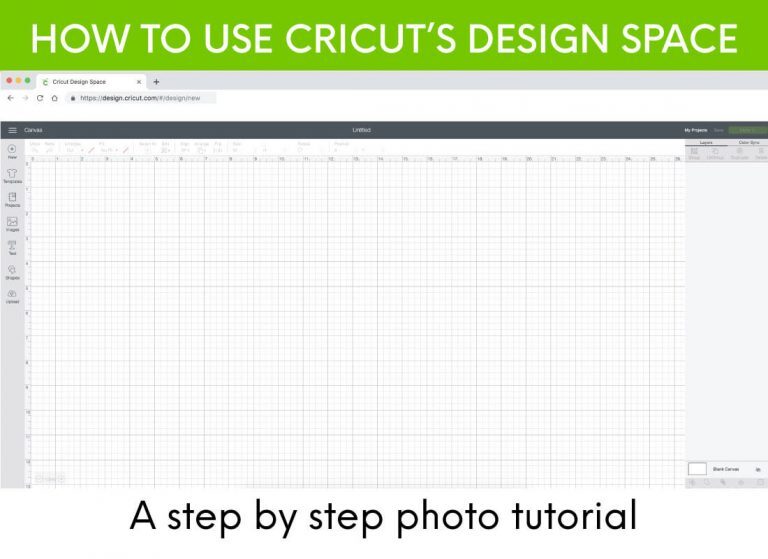
The Cricut Design Space interface is designed to be user-friendly, helping both beginners and seasoned crafters to create and manage their projects efficiently. Understanding the main components of this interface is crucial for maximizing your design potential and streamlining your creative process.The primary components of the Cricut Design Space interface include the Canvas, Toolbar, Layers Panel, and Menu Bar. Familiarity with these elements allows users to access various tools and features swiftly, aiding in the overall design experience.
Main Components of the Interface
The following sections detail the main components of the Cricut Design Space interface, outlining their functions and significance.
- Canvas: This is the central workspace where users design their projects. It allows for the manipulation of shapes, text, and images directly on the grid.
- Toolbar: Located at the top of the Canvas, this toolbar provides quick access to essential tools such as the select tool, text tool, and shape tool, enhancing user efficiency.
- Layers Panel: This panel, found on the right side, lists all elements within the project. It enables users to manage layers, adjust their order, and make visibility changes easily.
- Menu Bar: Situated at the top of the screen, this contains drop-down menus for accessing file options, editing tools, and project information.
Accessing Tools and Menus
Navigating through the various tools and menus in Cricut Design Space is straightforward. Here is a step-by-step guide for accessing the key functionalities:
- Open Cricut Design Space and log into your account.
- Select “New Project” to access the Canvas.
- Utilize the Toolbar at the top to choose your desired tool based on project requirements, such as adding text or graphics.
- Explore the Layers Panel to manage your design elements. Click on an item to access options such as duplicate, delete, or rearrange layers.
- Use the Menu Bar for saving your project or accessing additional settings.
Comparison of Desktop and Mobile App Versions
Cricut Design Space is available both as a desktop application and a mobile app, each with unique features suited to different user preferences.The desktop version offers a more extensive workspace with a larger screen, allowing for detailed design work. Users benefit from the full range of tools and functionalities, making it ideal for intricate projects. In contrast, the mobile app provides a convenient way to design on the go.
While it retains many essential features of the desktop version, the interface is simplified for touch navigation. The app allows users to access saved projects and make quick edits, although some advanced features may be limited compared to the desktop version.
“Understanding the differences between the desktop and mobile versions of Cricut Design Space can enhance your crafting experience, allowing you to choose the best platform for your needs.”
Creating Your First Project
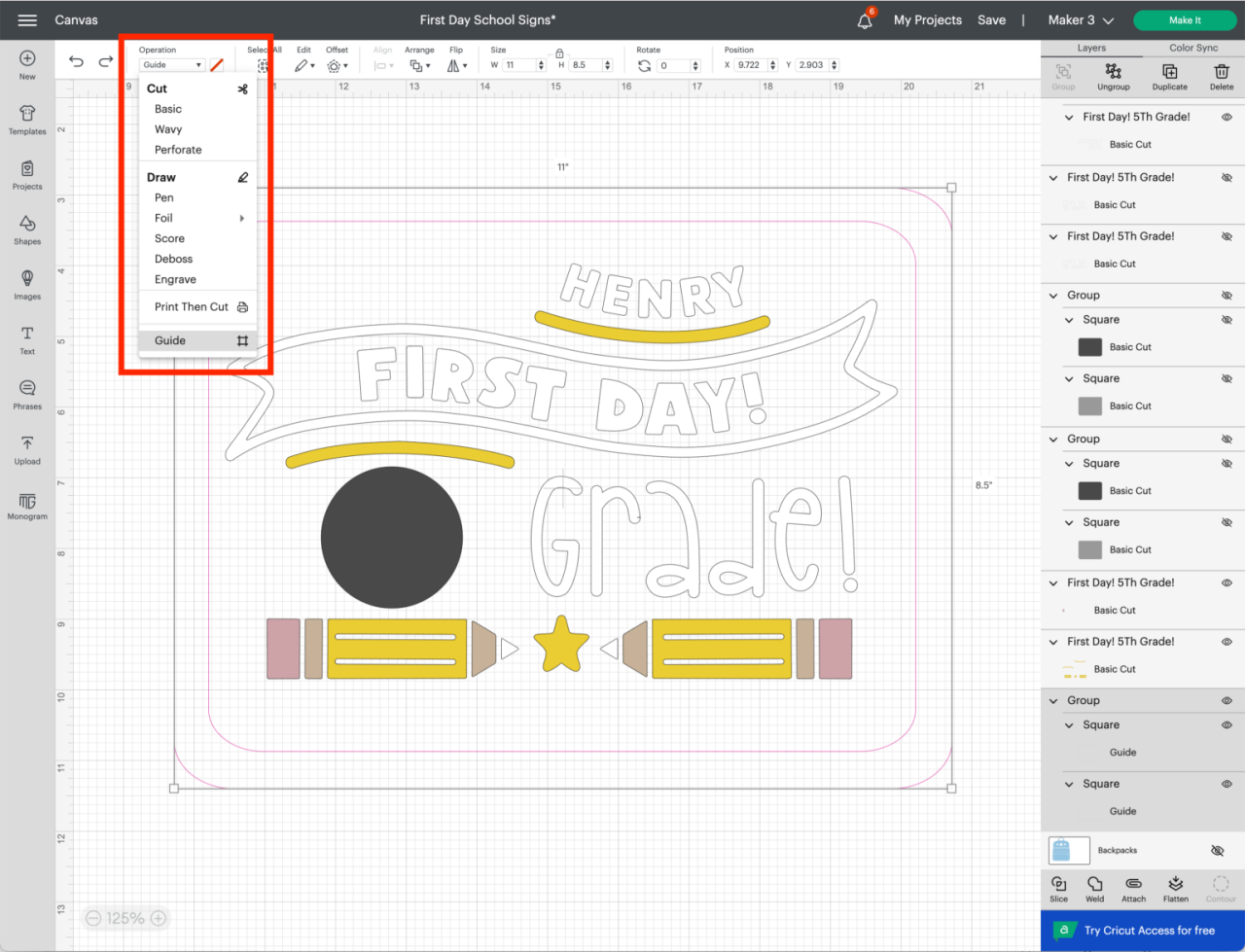
To embark on your creative journey with Cricut Design Space, starting your first project is an exciting step. This process involves utilizing the platform’s tools to bring your design ideas to life, whether you’re crafting a simple greeting card or a personalized gift. In this section, we will guide you through the essential steps to create your first project from scratch, including how to select and upload images or designs, and the use of text tools for custom creations.
Starting a New Project
To initiate your project, first, locate the “New Project” button on the top left corner of the interface. Clicking this will take you to a blank canvas where you can begin designing. This canvas is where your imagination comes to life; it provides a workspace to arrange your images, text, and other design elements. Upon entering the new project, you will notice the toolbar on the left side, which contains various tools to assist in the creation process.
Choosing and Uploading Images or Designs
Incorporating images into your project is crucial for adding a personal touch. The process includes the following steps:
- Click on the “Upload” icon located in the left toolbar.
- Select “Upload Image” and choose a file from your computer. Supported formats include PNG, JPG, GIF, and SVG.
- Once your image is uploaded, you will need to refine it using the image options provided. This involves removing backgrounds, adjusting the colors, or cropping to suit your design.
- After editing, click “Next,” then assign tags to your image for easier access in the future before saving it to your library.
This functionality allows you to introduce your own artwork or images, ensuring your project is unique and tailored to your vision.
Using Text Tools for Custom Designs
Text can be a powerful element in your design, providing context or enhancing the visual appeal. The text tools in Cricut Design Space allow for customization in a straightforward manner:
- To add text, select the “Text” tool from the left toolbar. A text box will appear on your canvas.
- Enter your desired text and use the editing toolbar above the canvas to adjust font, size, alignment, and spacing.
- Cricut Design Space offers a variety of fonts, both system fonts and those available within the platform. You can browse through these options to find the perfect style for your project.
- Once your text is formatted, consider adding effects such as shadows or Artikels to enhance its visibility and artistic flair.
By utilizing these text tools, you can create personalized messages, quotes, or labels, enhancing the overall quality and uniqueness of your project.
Using Templates and Pre-made Designs
Cricut Design Space offers users a wide array of templates and pre-made designs, making it an invaluable tool for both beginners and experienced crafters alike. These resources facilitate the creation of personalized projects without the need for advanced design skills. Understanding how to utilize these available options can significantly enhance your crafting experience and allow you to produce professional-quality projects with ease.One of the key benefits of using templates and pre-made designs is the time-saving aspect they provide.
Users can choose from an extensive library of projects that cater to various occasions, themes, and skill levels. These resources not only inspire creativity but also simplify the crafting process. Below are some popular categories of templates and projects available in Cricut Design Space.
Popular Templates and Projects
Cricut Design Space features an extensive selection of templates and pre-made designs that cater to a variety of crafting needs. These projects are perfect for beginners who want to dive into creating without starting from scratch. Some popular categories include:
- Greeting Cards: Pre-designed cards for holidays, birthdays, and special occasions.
- Vinyl Decals: Ready-to-use designs for home decor, personalization, and gifts.
- Home Decor: Templates for wall art, framed pieces, and seasonal decorations.
- Apparel: Designs for custom t-shirts, bags, and other fabric-based projects.
- Party Supplies: Templates for banners, cupcake toppers, and invitations.
Customizing Pre-made Designs
Customizing pre-made designs in Cricut Design Space is a straightforward process that allows users to infuse their personal style into their projects. Users can modify colors, sizes, and even the elements within the designs to create unique items that reflect their preferences. The following steps Artikel the customization process:
1. Select a Template
Start by choosing a pre-made design from the library that resonates with your project goals.
2. Edit Text
If the template contains text, click on it to modify the wording, font, and size as desired.
3. Change Colors
Use the color palette to adjust the colors of various elements in the design, ensuring they align with your aesthetic.
4. Resize Elements
Drag the corners of the design to resize components, maintaining proportions as needed.
5. Add Personal Touches
Incorporate additional elements such as shapes, images, or patterns from the Cricut library to enhance the design.Customizing designs not only makes projects more personal but also allows for creative expression, making each piece truly one-of-a-kind.
Beginner-Friendly Project Examples
For those new to using Cricut Design Space, several beginner-friendly projects are well-suited for utilizing templates. These projects provide an excellent introduction to the software, enabling users to familiarize themselves with various features in a hands-on manner:
- Personalized Mugs: Use a template to create vinyl decals that can be applied to ceramic mugs.
- Simple Wall Art: Select a design for a motivational quote that can be framed or hung directly on the wall.
- Custom Tote Bags: Choose a template for a tote bag and personalize it with a favorite image or saying.
- Birthday Banners: Use pre-made templates to assemble colorful banners for celebrations.
- Gift Tags: Create unique gift tags using templates that can be personalized for any occasion.
Understanding Layers and Grouping
Cricut Design Space operates on a layering system, which is fundamental to creating complex designs, allowing users to manipulate individual components with ease. Layers serve as building blocks for your projects, giving you control over the arrangement and visibility of design elements. Understanding how to navigate these layers is essential for achieving the desired aesthetics in your creations.Layers in Cricut Design Space represent different elements of your design, allowing you to overlap, rearrange, and group them as needed.
Each layer can contain text, images, shapes, or other design elements, and their importance cannot be overstated. Layers enable users to work on individual components without affecting the entire design, making it easier to edit and refine specific areas.
Organizing Layers
Proper organization of layers is crucial for effective project management within Cricut Design Space. A well-organized project allows for smoother editing and a clearer view of the overall design. To assist in organizing layers, consider the following strategies:
Naming Layers
Rename layers to reflect their contents or purpose. For example, if you have a layer for a text element, you might name it “Title” or “Subtitle.” This will simplify the identification of specific layers during editing.
Color Coding
Utilize the color options to differentiate between layers visually. For example, you might use one color for text layers and another for graphic elements, making it easier to distinguish between them at a glance.
Layer Order
The stacking order of layers affects how they appear in the final design. Elements at the top of the layer panel are visible in front of those below them. Adjusting the order by dragging layers up or down can change their visibility and interaction with other layers.
Grouping Layers
Group related layers to manage them as a single unit. Highlight the layers you wish to group, right-click, and select “Group.” This allows for collective resizing, moving, and editing without disturbing the individual components.
Locking Layers
Lock layers that are finalized to prevent accidental modifications. This feature is beneficial when you are satisfied with a particular design element and wish to focus on other layers without risk of changing it inadvertently.A visual guide can help illustrate the layering process effectively. Imagine a design workspace showcasing a layered panel on the right side of the screen.
At the top, the “Title” layer sits above a “Background” layer, followed by graphic elements labeled “Flower” and “Leaf.” Each layer is represented by a distinct color, with the “Title” layer highlighted in blue, the “Background” in light gray, and the graphics in shades of green. The layers are organized in a clear vertical list, with icons indicating whether they are visible or locked.
This clear arrangement would provide insight into how layers interact with one another, emphasizing the visual hierarchy of the design.In summary, mastering layers and their organization in Cricut Design Space transforms your creative process, allowing for meticulous control over designs and enhancing the overall quality of your projects.
Cutting and Previewing Designs
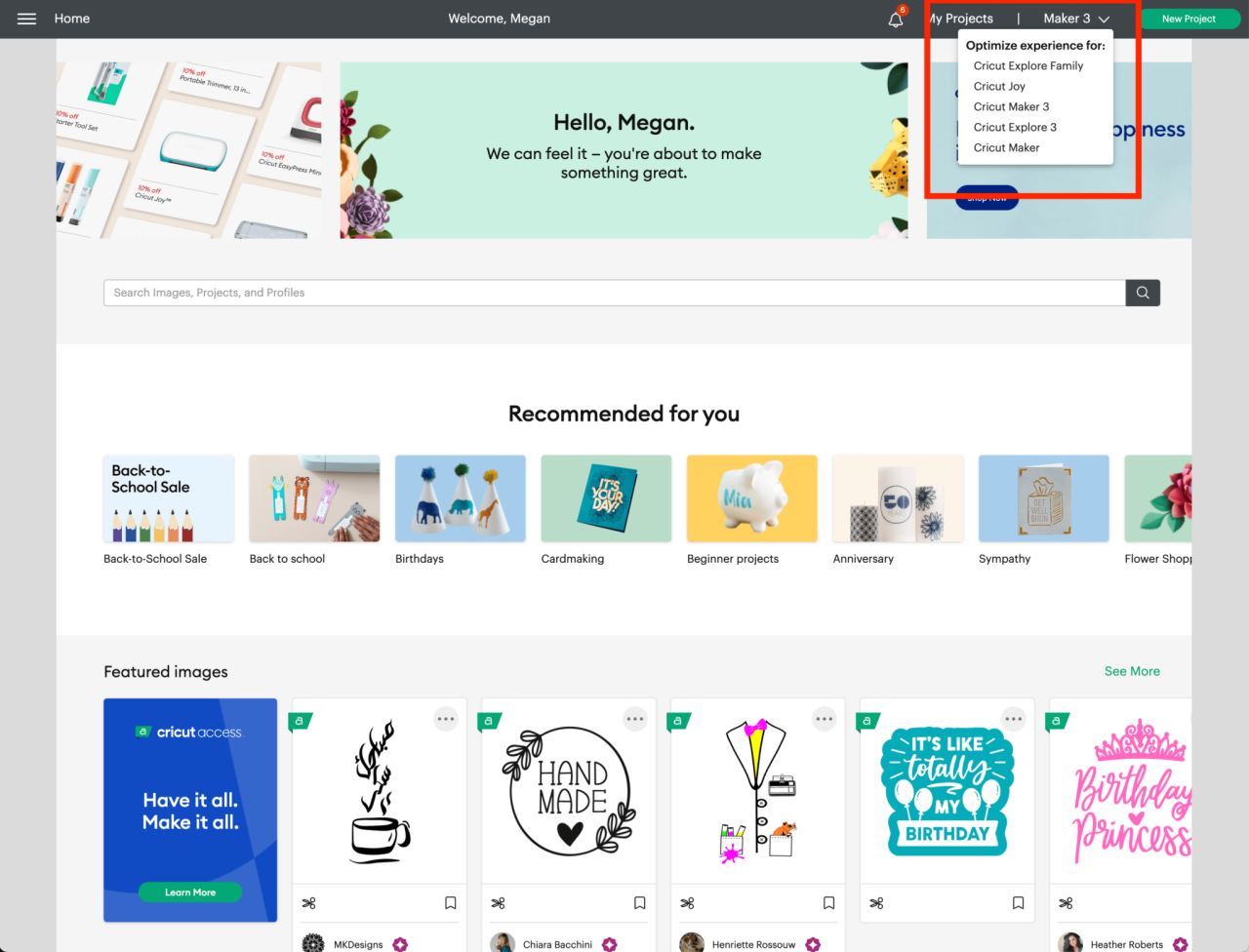
Preparing a design for cutting is a crucial step in ensuring that your final project turns out exactly as envisioned. This process involves several important actions, from confirming design dimensions to selecting the right materials. Following these steps carefully will help you avoid common pitfalls and achieve professional results.To ensure your design is ready for the cutting machine, it is important to adhere to a checklist that encompasses all necessary criteria.
This checklist will aid in verifying that every aspect of your design is optimized for cutting.
Checklist for Cutting Preparation
The following checklist Artikels the essential components to review before sending your design to the cutting machine:
- Verify Design Size: Ensure that the dimensions of your design fit within the constraints of the material you are using.
- Select Material Type: Confirm that the chosen material is compatible with your Cricut cutting machine.
- Confirm Cut Settings: Adjust the machine settings to match the thickness and type of material selected.
- Check for Layers: Ensure all layers are correctly arranged and visible for cutting.
- Remove Unwanted Elements: Double-check for any stray marks or elements that should not be part of the final cut.
- Save Your Work: Save your design in the software to prevent data loss.
Utilizing the preview feature effectively is also important prior to cutting. This feature allows you to visualize how your design will be cut, providing an opportunity to make any last-minute adjustments.
Using the Preview Feature Effectively
The preview feature in Cricut Design Space is a powerful tool that aids in verifying your design before cutting. By effectively using this feature, you can identify discrepancies in your design and ensure accuracy.
“Previewing your design can save time and materials by preventing cutting errors.”
To maximize the effectiveness of the preview feature, consider the following tips:
- Utilize the Zoom function: Zoom in on your design to inspect fine details and confirm that all elements are as intended.
- Check Cut Lines: Ensure that the cut lines appear as expected, particularly for intricate designs.
- Simulate Cutting Sequence: Use the preview to observe the order in which the machine will cut the layers, allowing adjustments to be made for efficiency.
- Assess Material Placement: Visualize how the design will fit on your material, ensuring optimal use of space.
- Review and Adjust: Make any necessary adjustments based on the preview before finalizing the cut setup.
Troubleshooting Common Issues
When using Cricut Design Space for the first time, beginners may encounter various challenges that can hinder their creative process. Understanding these common issues and knowing how to resolve them is crucial for a smoother crafting experience. This section will address frequent problems users face, along with practical solutions and preventative measures.
Common Design Errors
Design errors can stem from various sources, and recognizing these can significantly reduce frustration. Some typical design errors include misalignment, incorrect sizing, and selection of incompatible materials. To address these errors, consider the following solutions:
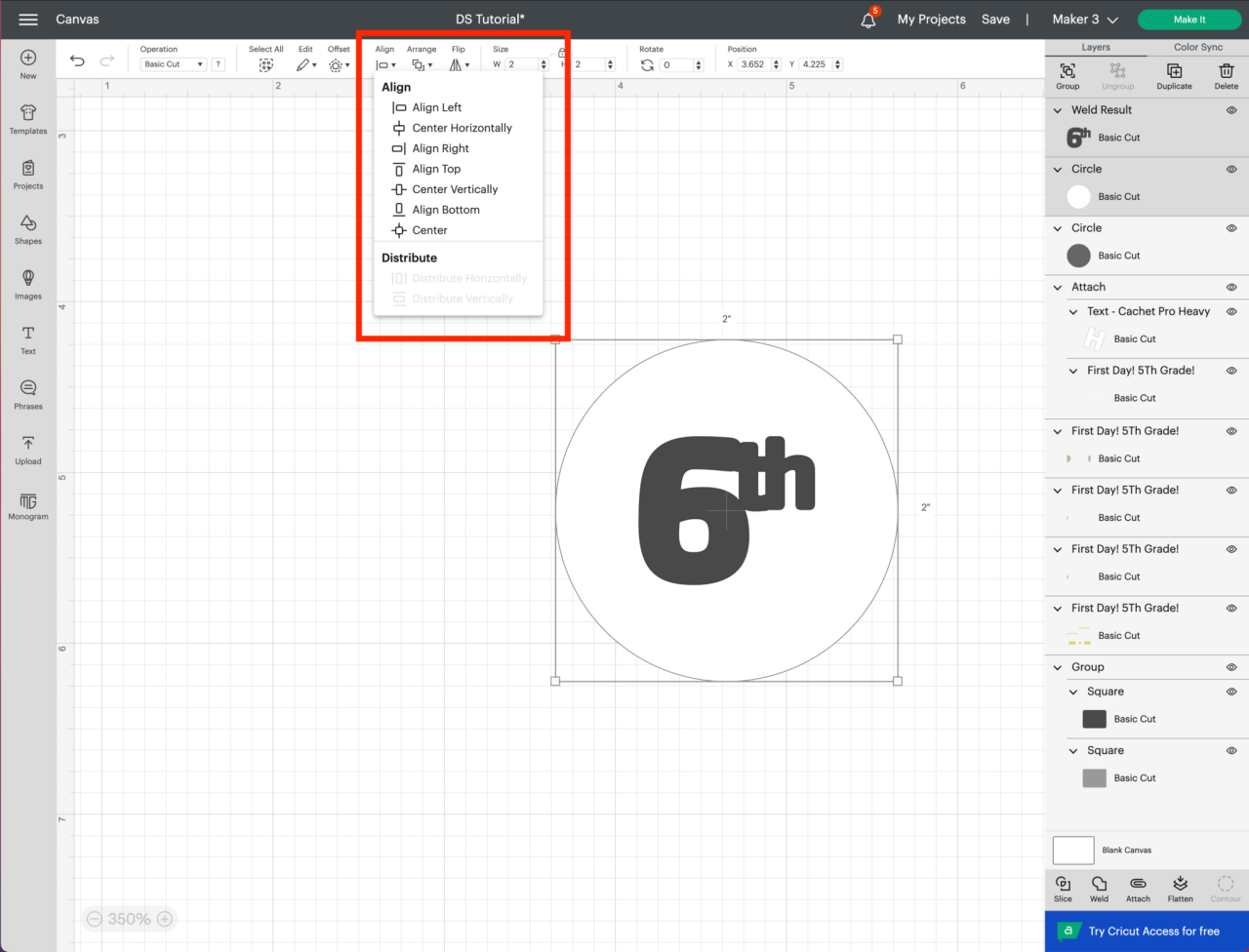
- Misalignment: Use the alignment tools in the toolbar to center or distribute your elements evenly. The snap-to-grid feature can also assist in ensuring that shapes are properly aligned.
- Incorrect Sizing: Double-check the dimensions of your design by selecting the element and reviewing the size settings in the edit panel. If adjustments are needed, you can manually input the desired dimensions.
- Incompatible Materials: Always verify that the chosen material is compatible with your Cricut machine and the selected design settings. Refer to the materials guide within the Cricut Design Space for assistance.
Cutting Problems
Cutting issues are another common concern that can arise during the crafting process. These may include the machine not cutting through the material, incomplete cuts, or blade-related issues.To remedy cutting problems, the following steps can be taken:
- Machine Not Cutting Through Material: Ensure that the blade is clean and sharp. If cutting through thicker materials, consider adjusting the pressure settings within the cut settings to achieve a deeper cut.
- Incomplete Cuts: Check for proper material placement on the cutting mat. If the material is not adhered correctly or is wrinkled, it may lead to incomplete cuts.
- Blade Issues: Inspect the blade for any damage or debris. Regularly replacing the blade will ensure optimal performance and quality cuts.
Preventative Measures
Taking proactive steps can help prevent common pitfalls associated with Cricut Design Space. Establishing good habits early on can save time and enhance the user experience.Consider implementing the following preventative measures:
- Regular Software Updates: Ensure that Cricut Design Space is updated to the latest version to benefit from new features and bug fixes.
- Utilize Tutorials: Leverage the wealth of tutorials and instructional videos available on the Cricut website and other platforms to familiarize yourself with the software.
- Practice with Test Cuts: Before starting on a significant project, conduct test cuts on scrap material to determine settings and prevent material waste.
Resources for Further Learning
As you embark on your Cricut journey, having access to reliable learning resources can significantly enhance your skills and creativity. Whether you are looking for online tutorials, engaging communities, or in-depth literature, there are numerous avenues to explore that cater to all levels of Cricut users. Utilizing these resources will help you navigate Design Space more effectively and inspire innovative projects.
Online Resources and Tutorials
The internet is a treasure trove of information for Cricut enthusiasts. A variety of websites and platforms provide free and paid tutorials that can help you master Cricut Design Space. Here are some noteworthy resources:
- Cricut Official Website: The official Cricut website offers an extensive library of tutorials, projects, and user guides tailored for all experience levels.
- YouTube: Many creators share their Cricut experiences through video tutorials, such as Jennifer Maker and The Cottage Market, covering a myriad of projects and techniques.
- Design Bundles: This platform provides not only designs and SVG files but also tutorials on how to use those files within Design Space effectively.
- Craft Clubs: Websites like Crafty Club provide a subscription service that offers exclusive projects, tips, and tutorials for Cricut users.
Books and Guides for In-Depth Knowledge
A variety of books offer comprehensive insights into Cricut machines and Design Space. These resources are ideal for anyone who prefers detailed written instructions and techniques. Here are some highly recommended titles:
- The Cricut Craft Room: This book guides readers through the Cricut ecosystem with step-by-step instructions on using the software and creating projects.
- Cricut for Beginners: This guide focuses on foundational skills, making it suitable for new users who want to learn the basics of Cricut Design Space.
- The Complete Guide to Cricut Design Space: This book delves deep into the functionalities of Design Space, providing tips and tricks for advanced users.
Benefits of Joining Cricut User Groups
Being part of a community can greatly enhance your Cricut experience. Joining local or online Cricut user groups offers numerous benefits, including:
- Networking Opportunities: Connecting with fellow enthusiasts can lead to partnerships on projects, new ideas, and collaborative learning.
- Sharing Experiences: User groups often provide a platform for sharing successes and challenges, which can be particularly helpful in troubleshooting common issues.
- Access to Exclusive Content: Many groups offer exclusive tutorials, project ideas, and even discounts on materials and tools tailored for members.
- Inspiration and Motivation: Beyond sharing information, these groups can inspire new projects and keep you motivated in your crafting journey.
Closing Notes
In conclusion, mastering How to Use Cricut Design Space for the First Time equips you with the necessary tools and insights to transform your creative ideas into tangible projects. As you navigate the various features, overcome challenges, and explore further resources, you will find a supportive community that shares your passion for crafting. Embrace this opportunity to express your creativity and enjoy the rewarding journey that lies ahead in the world of Cricut.