How to Calibrate Your Cricut for Perfect Cuts is essential knowledge for any Cricut enthusiast aiming to achieve flawless results. Calibration is the process that ensures your machine accurately reflects the design specifications, allowing for precision in every cut. With various factors influencing calibration, understanding this process is vital to harnessing the full potential of your Cricut machine.
In this guide, we will explore the significance of calibration, the necessary preparations, and the step-by-step process to ensure your Cricut is functioning optimally. As we delve deeper, you’ll discover troubleshooting tips for common issues and best practices for maintaining accuracy over time, empowering you to execute perfect cuts with confidence.
Understanding Cricut Calibration
Calibration in the context of Cricut machines refers to the process of adjusting the cutting settings to ensure that the machine produces accurate and precise cuts. This adjustment is crucial for the quality of projects, allowing users to achieve a professional finish. Proper calibration ensures that materials are cut exactly as intended, preventing wastage and enhancing the overall crafting experience.The importance of calibration cannot be overstated, as it directly impacts the effectiveness of the Cricut machine.
When calibration is performed correctly, it leads to clean, sharp cuts that align perfectly with design specifications. This precision is especially vital for intricate designs or when using materials that are more challenging to cut. Thus, calibration is an essential step before starting any project, ensuring that each cut meets the expected standards.
Factors Affecting Calibration Results
Several factors can influence the results of the calibration process. Understanding these elements is key to achieving optimal performance from your Cricut machine. The following points highlight the critical aspects:
- Blade Condition: The sharpness and cleanliness of the cutting blade play a significant role in the quality of cuts. A dull or damaged blade can lead to inaccurate cuts and may require more frequent calibration.
- Material Thickness: Variations in material thickness can affect how the machine calibrates. Ensuring that the material is within specified thickness ranges is essential for consistent results.
- Cutting Speed and Pressure Settings: The settings chosen for speed and pressure can also impact the outcome of cuts. These settings may need adjustments depending on the material being used.
- Machine Maintenance: Routine maintenance, including cleaning and checking for updates, is vital for keeping the machine performing optimally.
- Software Updates: Keeping the design software up to date can affect calibration, as updates may include improvements or changes in cutting algorithms.
The interplay of these factors can lead to discrepancies in cutting accuracy. Therefore, understanding and managing them is vital for achieving consistent results with your Cricut projects.
Calibration is essential for ensuring precise and accurate cuts, enhancing the overall crafting experience.
Preparing for Calibration
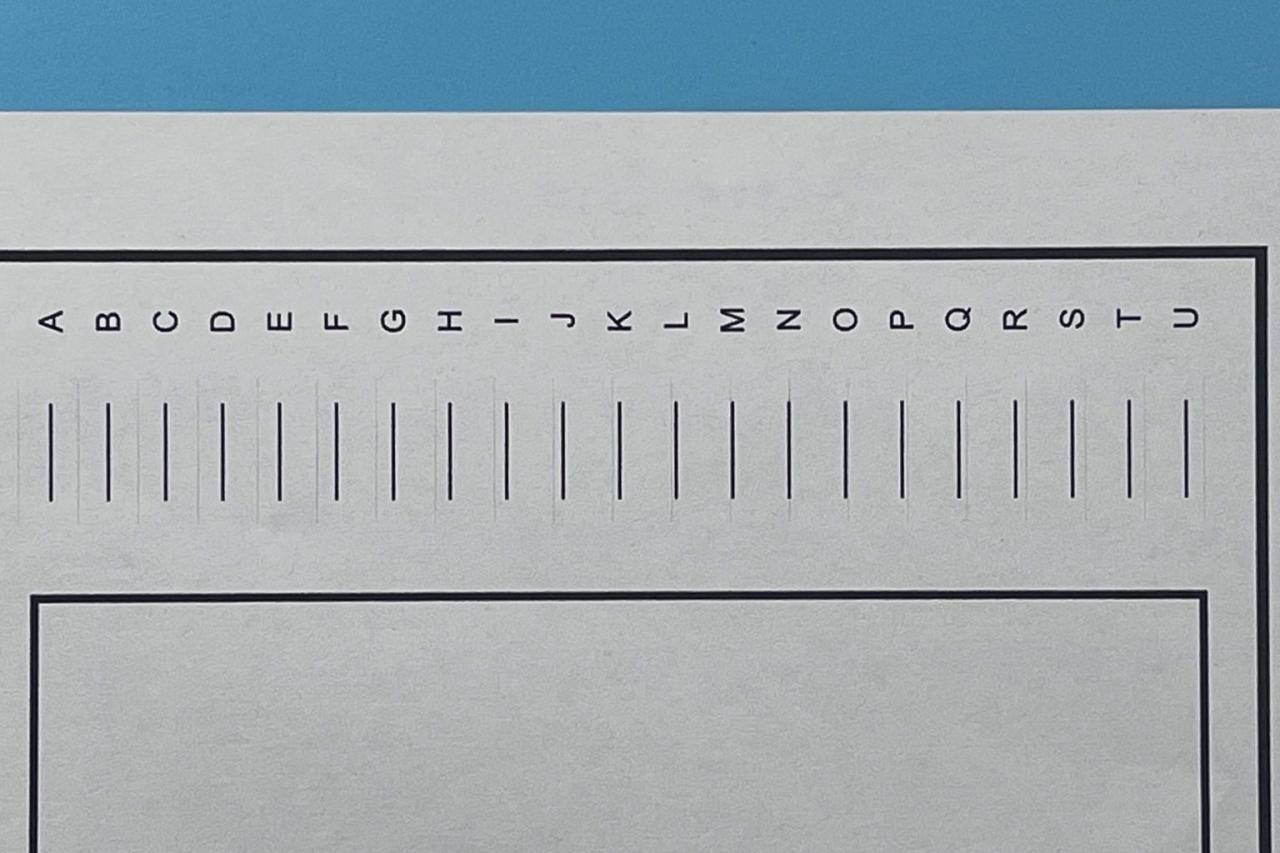
In order to achieve optimal performance from your Cricut machine, proper preparation for calibration is essential. This process ensures that the machine is fine-tuned for accurate cutting, which can significantly enhance your crafting results. Below are the key components and environment considerations necessary for an effective calibration.
Necessary Materials for Calibration
Gathering the right materials is crucial to ensure a smooth calibration process. Here is a list of all the items you will need:
- Cricut machine
- Cutting mat (preferably the one used for your specific project)
- Test material (such as cardstock or vinyl)
- Ruler or measuring tape
- Pencil or pen for marking
These materials will assist in accurately measuring cuts and adjustments during calibration, enhancing the overall precision of your machine.
Ideal Working Environment for Calibration
The environment in which you calibrate your Cricut can greatly influence the accuracy of the cuts. It is recommended to set up your workspace with the following considerations:
- A flat, stable surface to prevent the machine from moving during calibration.
- Good lighting to clearly see the placement of materials and markings.
- A temperature-controlled area to reduce the risk of material warping.
- Minimal distractions to maintain focus during the calibration process.
These factors contribute to a conducive calibration environment, ensuring that external variables do not interfere with the calibration process.
Optimal Machine Condition for Calibration
Ensuring your Cricut machine is in optimal condition is vital for successful calibration. Follow these steps to prepare your machine:
- Check for any debris or dust in the machine and clean it if necessary.
- Inspect the blade for sharpness and ensure it is properly installed.
- Verify that the cutting mat is clean and sticky enough to hold your material securely.
- Update the firmware of your Cricut to the latest version for improved functionality.
Taking these steps allows for more consistent and precise cuts, leading to a more successful calibration process.
Regular maintenance of your Cricut machine is essential for achieving optimal operational performance.
Step-by-Step Calibration Process
![How to Calibrate Cricut Maker? [Comprehensive Guide] | by Steffanwelsh ...](https://yoklah.web.id/wp-content/uploads/2025/09/how-to-calibrate-Cricut-machines.jpg "How to Calibrate Cricut Maker? [Comprehensive Guide] | by Steffanwelsh ...")
Calibrating your Cricut machine is an essential task that significantly enhances its cutting accuracy. By following a structured calibration process, you can achieve precise results, ensuring that your designs are cut exactly as intended. Below is a detailed guide to calibrating your Cricut machine effectively.
Calibration Preparation
Before starting the calibration process, it is vital to prepare your Cricut machine and workspace. This includes ensuring that your Cricut is properly set up, connected to your computer or mobile device, and that you have the appropriate materials and tools ready for the calibration test.
Calibration Process Steps
The calibration process involves several specific steps that you must follow diligently. Each step is crucial for achieving accurate cuts.
- Access the Calibration Tool:
To begin, power on your Cricut machine and open the Design Space application. Navigate to the “Calibration” option under the “Settings” menu.
- Select the Appropriate Calibration Type:
Choose the type of calibration you wish to perform, typically “Print Then Cut” or “Basic Calibration.” Select “Basic Calibration” for most general cutting purposes.
- Prepare the Mat:
Place a clean cutting mat into your Cricut machine. Ensure that it is free from dust and debris to avoid any interference during the cutting process.
- Start the Calibration Cut:
Follow the prompts in the Design Space application to initiate the calibration cut. The machine will create a test cut, which typically includes a series of lines and shapes designed to evaluate the accuracy of your cuts.
- Evaluate the Test Cut:
Once the test cut is complete, carefully remove the material from the mat. Examine the cuts to determine how accurately they match the intended design. Look for any misalignment or discrepancies in the cuts.
- Adjust Settings as Necessary:
If the cuts are not accurate, return to the calibration settings. Adjust the necessary parameters, such as blade depth or pressure settings, based on your evaluation of the test cut.
- Conduct a Follow-Up Test Cut:
After making adjustments, perform another test cut to verify that the changes have improved accuracy. This step is critical to ensure that all settings are correctly calibrated.
Verifying Calibration Accuracy
Once you have completed the calibration steps, it is essential to conduct a test cut to verify the accuracy of your settings.
“Accurate calibration is the key to achieving precision in every cut, ensuring your designs come out flawlessly.”
To verify accuracy, select a simple design from the Design Space and proceed to cut it. After the cutting process, compare the results with the original design specifications. Pay attention to the following points:
- Alignment: The cut should match the design’s Artikel perfectly.
- Clean Edges: There should be no jagged or uneven edges on the cut material.
- Consistency: Multiple cuts of the same design should yield identical results.
If any discrepancies remain after the test cut, revisit the calibration settings and make further adjustments as needed. Regular calibration ensures that your Cricut machine operates at its best, allowing you to create projects with professional-quality precision.
Troubleshooting Calibration Issues
Calibration issues can often arise during the process of fine-tuning your Cricut machine for optimal performance. Understanding these potential problems is essential to ensure you achieve perfect cuts every time. This section will identify common calibration issues, provide solutions, and highlight when it may be necessary to consult a professional for assistance.
Common Calibration Problems
Several issues can occur during the calibration process, impacting the accuracy of your cuts. Recognizing these problems early can lead to timely resolutions. The following are some frequent calibration issues encountered by users:
- Misalignment of Cuts: This often results in the blade not cutting along the intended lines, leading to uneven edges.
- Inconsistent Cutting Depth: Variability in cutting depth can result in incomplete cuts or excessive cutting through the material.
- Software Glitches: Occasionally, the calibration software may malfunction, causing errors in cut placement or settings adjustments.
- Material Thickness Variations: Different materials have different thicknesses, which can affect how the machine interprets the cut settings.
Solutions for Calibration Issues
Addressing calibration issues requires a systematic approach. Below are some strategies to resolve specific problems you may encounter:
- For Misalignment of Cuts: Recheck the alignment of your material on the cutting mat. Ensure it is properly adhered and that the mat is correctly loaded into the machine.
- To Fix Inconsistent Cutting Depth: Adjust the blade depth settings according to the material type. Use test cuts on scrap material to find the optimal blade depth.
- Resolving Software Glitches: Restart the Cricut machine and the associated software. Ensure that your software is updated to the latest version to prevent bugs.
- Managing Material Thickness: Use the Material Settings feature in the software to select the appropriate material type that corresponds to the thickness of your project material.
Professional Assistance for Persistent Issues
In some cases, calibration issues may persist despite troubleshooting efforts. It is important to recognize when it is time to seek professional help. Here are scenarios where consulting a technician or customer support is advisable:
- If multiple recalibrations do not resolve misalignment or cutting depth issues, there may be a hardware malfunction.
- Persistent software errors that cannot be rectified through standard troubleshooting steps may indicate a deeper issue with the machine’s firmware.
- If you are unsure about making adjustments or if the calibration problems continue to escalate, professional guidance can provide clarity and ensure your machine is functioning optimally.
“Timely intervention can save time and resources, ensuring your Cricut machine operates at its best.”
Maintaining Calibration Over Time
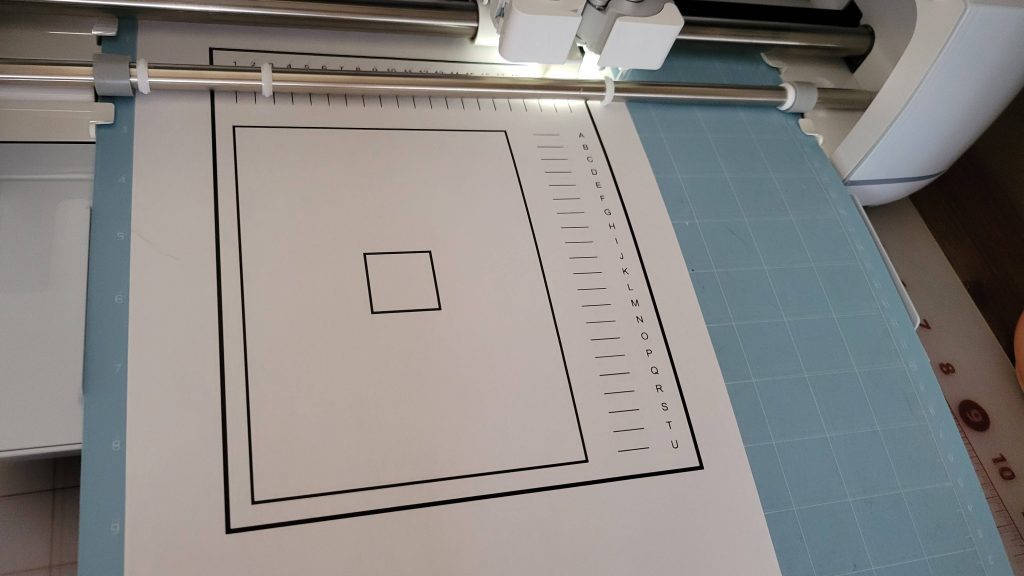
Regular maintenance of your Cricut’s calibration settings is essential to ensure precision in your cutting projects. Over time, various factors can affect calibration accuracy, including wear and tear on the machine, changes in material thickness, and even temperature fluctuations. By adhering to best practices for calibration maintenance, you can sustain the machine’s performance and achieve consistent, high-quality results in your crafting endeavors.To maintain calibration effectively, it is crucial to monitor the condition of your Cricut machine and perform recalibration when necessary.
Establishing a routine can help in identifying any drift in calibration settings, ensuring optimal cutting accuracy throughout your crafting journey.
Best Practices for Regular Maintenance of Calibration Settings
An effective maintenance routine involves several key practices that help keep your calibration settings in check. Implementing these practices will not only prolong the life of your machine but also enhance its cutting precision:
- Perform regular cleaning of the cutting blade and housing to remove debris that might affect cutting quality.
- Inspect and replace blades periodically, as worn blades can lead to inaccurate cuts.
- Ensure that the machine’s rollers and mats are in good condition, as they play a vital role in holding materials steady during cutting.
- Verify that the firmware is up to date, as manufacturers often release updates to improve functionality and performance.
Frequency of Recalibrating the Cricut Machine
Determining how often to recalibrate your Cricut machine is crucial for maintaining optimal performance. Generally, it is advisable to recalibrate the machine under the following circumstances:
- After every significant maintenance, such as blade replacement or machine cleaning.
- When you notice any inconsistencies in cutting accuracy, even if they seem minor.
- Prior to starting a new project that involves different materials or thicknesses that were not previously used.
It’s a good practice to perform calibration checks every few months, even if you haven’t experienced noticeable issues. This proactive approach can prevent unnecessary frustration during crafting.
Impact of Wear and Tear on Calibration Accuracy
Wear and tear can significantly influence the accuracy of your Cricut’s calibration. As components of the machine age, they may not perform as reliably, leading to potential discrepancies in cutting precision. This can be particularly true for the cutting blade, rollers, and mats, which endure the most wear during regular use.
The accuracy of cuts can diminish as components wear down, making regular checks and maintenance paramount to achieving the best results.
Understanding the impact of wear can help you mitigate issues before they affect your projects. Regular inspections and timely replacements of worn parts are essential in preserving calibration accuracy and ensuring your Cricut machine remains a reliable tool for your crafting needs.
Advanced Calibration Techniques
For experienced Cricut users looking to achieve precision in their projects, advanced calibration techniques can significantly enhance the accuracy of cuts. These methods often involve a deeper understanding of the machine’s capabilities and the use of various software tools that can assist in the calibration process. This section will explore intricate techniques, software integrations, and a comparison between manual and automated calibration methods to achieve perfect cuts consistently.
Utilization of Software and Plugins
Incorporating software and plugins into the calibration process can streamline the calibration experience and provide more accurate results. Various applications are designed to work seamlessly with Cricut machines, offering features that aid in fine-tuning settings for different materials and projects. Some notable software and plugins include:
- Cricut Design Space: The primary software for Cricut users which allows for easy modifications of cut settings based on the material type.
- Sure Cuts A Lot (SCAL): An advanced cutting software that provides additional calibration settings and options for precise cuts.
- Inkscape: A free vector graphic design software that is often used to create intricate designs and can help ensure that dimensions are accurate before cutting.
These tools not only help in the calibration of settings but also in testing the cuts on a smaller scale before executing the final project, thus minimizing wasted materials.
Comparison of Manual and Automated Calibration Methods
Understanding the differences between manual and automated calibration methods is essential for achieving the desired outcome. Each method has its pros and cons, and the choice often depends on user preference and project requirements.The following table summarizes key differences between the two methods:
| Aspect | Manual Calibration | Automated Calibration |
|---|---|---|
| Precision | High precision but requires user expertise and experience. | Generally high precision, but may vary based on software efficiency. |
| Time Investment | Takes longer due to the need for trial and error. | Typically quicker once the software is set up properly. |
| Cost | Minimal costs, often just requires user knowledge. | May incur software costs depending on the chosen applications. |
| User Control | Full control over each calibration parameter. | Less user control; relies on the software’s settings. |
By weighing these factors, users can determine which method aligns best with their skill level and project needs.
“Advanced calibration techniques, utilizing software tools and understanding different calibration methods, can enhance the precision of Cricut cuts significantly.”
Conclusion
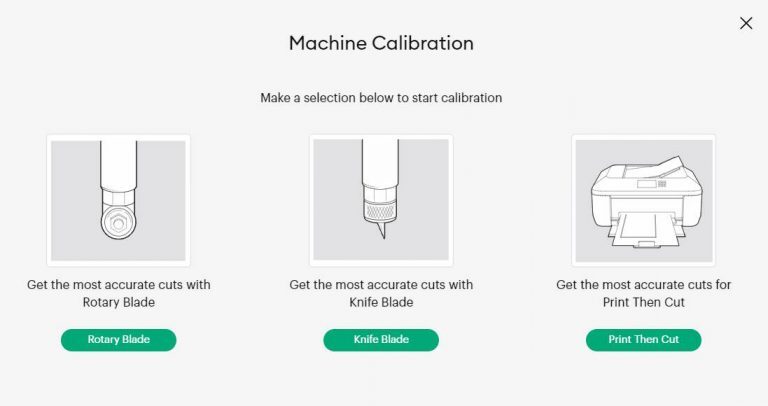
In conclusion, mastering the calibration process is a key factor in achieving perfect cuts with your Cricut machine. By following the Artikeld steps and maintaining regular checks, you can ensure consistent performance and accuracy in your projects. Whether you are a novice or an experienced user, understanding calibration can significantly enhance your crafting experience, allowing you to create with precision and ease.